
Xero 4: Contacts and Xero
Every contact you invoice needs a matching contact in Xero. EPONA takes care of this itself: the first time a contact is invoiced, it finds or creates their Xero contact and remembers the link. Existing Xero contacts can also be imported into EPONA so they are linked from the start.
Import contacts from Xero
Recommended where Xero already holds your clients. Available to admins only.
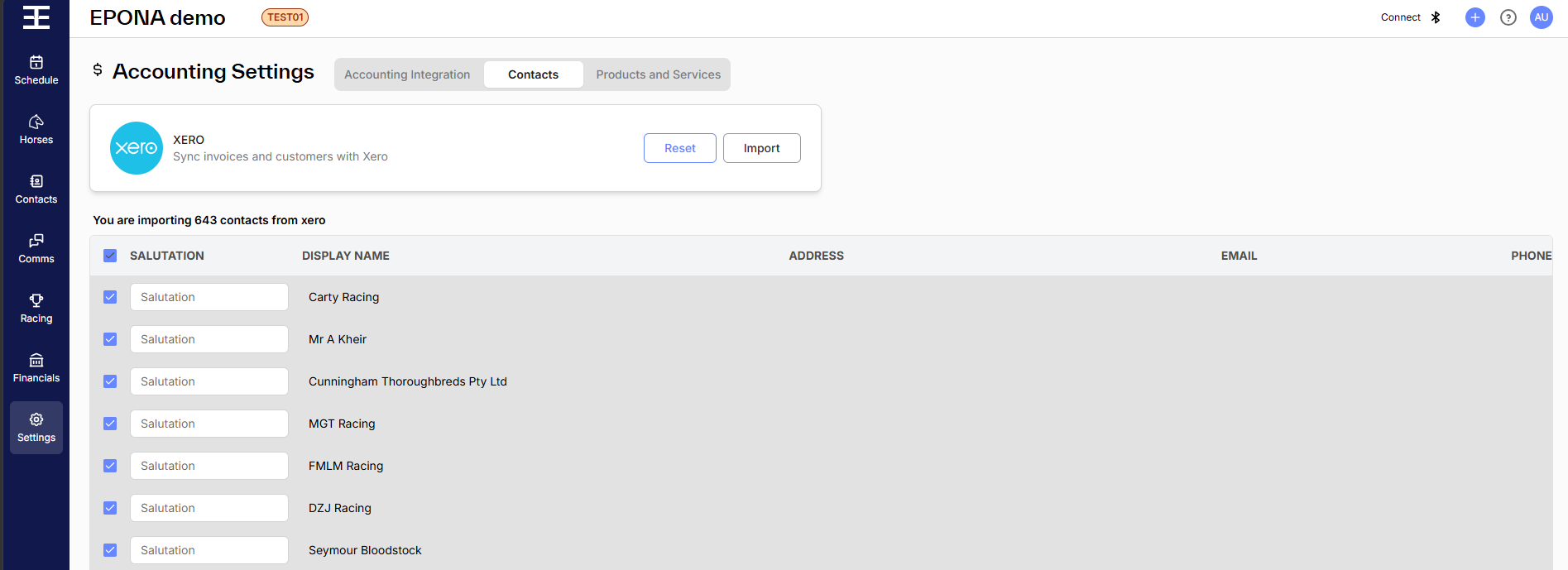
Click Settings in the left-hand navigation, then Accounting Settings, then the Contacts tab to the right of the page title. Click Import on the right of the XERO card. EPONA lists the customers in your Xero organisation, headed "You are importing [number] contacts from xero".
Each row shows:
- Salutation - optional, can be entered here
- Display Name
- Address
- Phone
Untick any contact you do not want, then click Save at bottom right. EPONA confirms "You have imported [number] contacts". Click Reset on the right of the XERO card to clear the list and start again.
Imported contacts are linked to their Xero contact from the start, and their email addresses are set as both General and Financial.
Note - a Xero contact whose name exactly matches a contact already in EPONA is not imported (and not counted). EPONA links its existing contact by name the first time it is invoiced or synced (see below).
How contacts are matched when you invoice
Each time an invoice is created, EPONA syncs the contact first:
- Already linked - EPONA uses that Xero contact
- Not linked - EPONA searches Xero customers by the contact's Display Name, then suppliers, and links to the first match
- No match - EPONA creates a new contact in Xero and links to it
Note - the search by name is not exact. A contact called John Smith could be matched to a Xero contact called John Smith Racing. Give contacts distinct display names, and where a client already exists in Xero, import them (above) rather than relying on the search.
What EPONA sends to Xero
- Contact name - from Display Name
- Company name - from Business Name (or Display Name if blank)
- First and last name - from first and last name
- Tax number (ABN) - from Business Number
- Email - from the contact's Financial email addresses: the oldest becomes the Xero primary email, and the rest are added as contact persons set to receive invoice emails
Address and phone are not sent to Xero.
Keeping details in step
Each time the contact is synced — whenever they are invoiced, or when Sync with accounting is clicked — EPONA compares the two records and the more recently changed one wins:
- Changed in EPONA more recently - EPONA updates the Xero contact
- Changed in Xero more recently - EPONA takes the Display Name, Business Name, Business Number, first and last name and Comments from Xero. Blank fields in Xero don't clear EPONA's.
Changes are not sent the moment a contact is saved; they go across at the next sync.
Invoice recipients come from EPONA. When EPONA creates the Xero contact, or updates it because the EPONA contact was changed more recently, it sets the Xero contact's primary email and contact persons from the contact's Financial email addresses, set on the Email Preferences tab of the contact profile.
Note - changing only a contact's email addresses doesn't count as a change to the contact, so it isn't sent to Xero on its own. Update the recipient in Xero as well.
Sync a contact now
Open the contact and click Sync with accounting at top right, next to Archive. EPONA confirms "Contact synced with your accounting system." The button is unavailable while the workspace is disconnected or the contact is archived.
Note - archived contacts cannot be synced, so their invoices won't reach Xero.
Note - do not delete, archive or merge a Xero contact that is linked to EPONA. EPONA keeps the link and uses it for that contact's next invoice.