Using Filtering
Where a database system provides you with a list of information (sometimes a very long list with hundreds of rows) it is very useful to be able to filter and sort the information on screen, and zoom in on just the information you are looking for.
Epona has some very powerful search, sorting and filtering options available in many screens. You will know filtering tools are available when you see the filter icon in a column header, as in the screenshot below. Click the 'Filter' tool (upside-down triangle) to reduce the list to only rows containing a specified value.
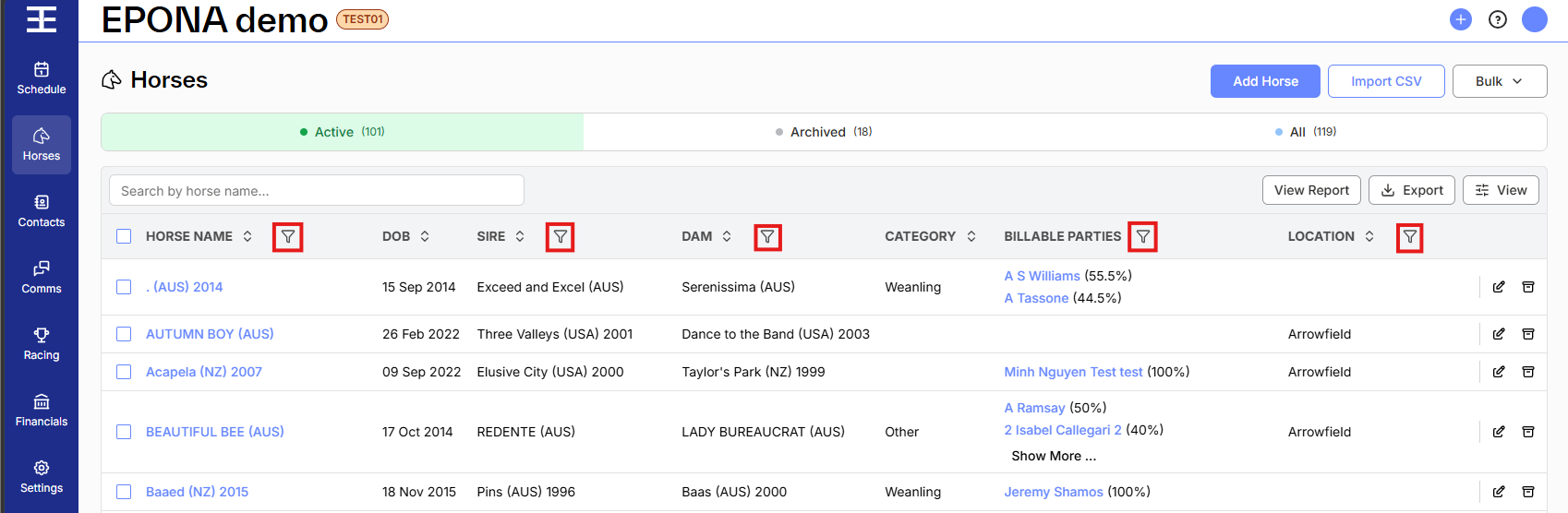
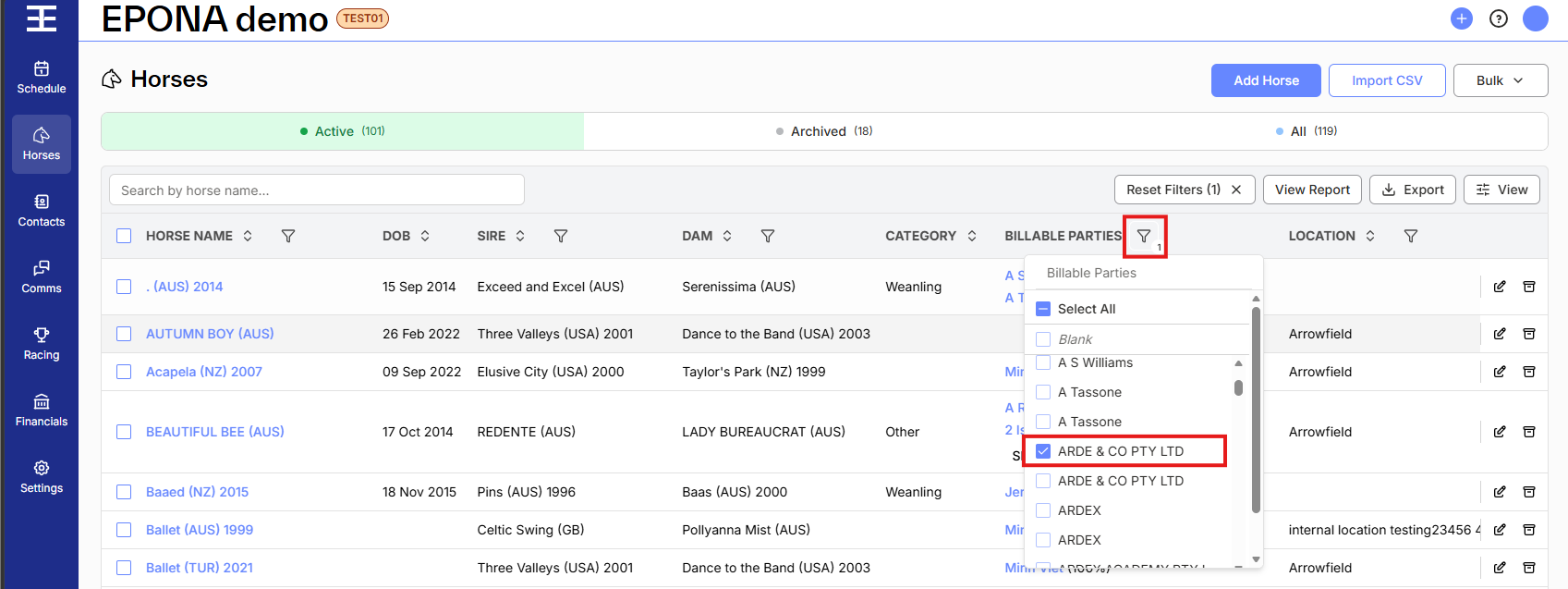
To use filtering select the 'filter' icon above one of the columns, then tick the column values that match your requirements. More than one filtering option can be ticked if needed. The list below will then only display options that match your filter selections.
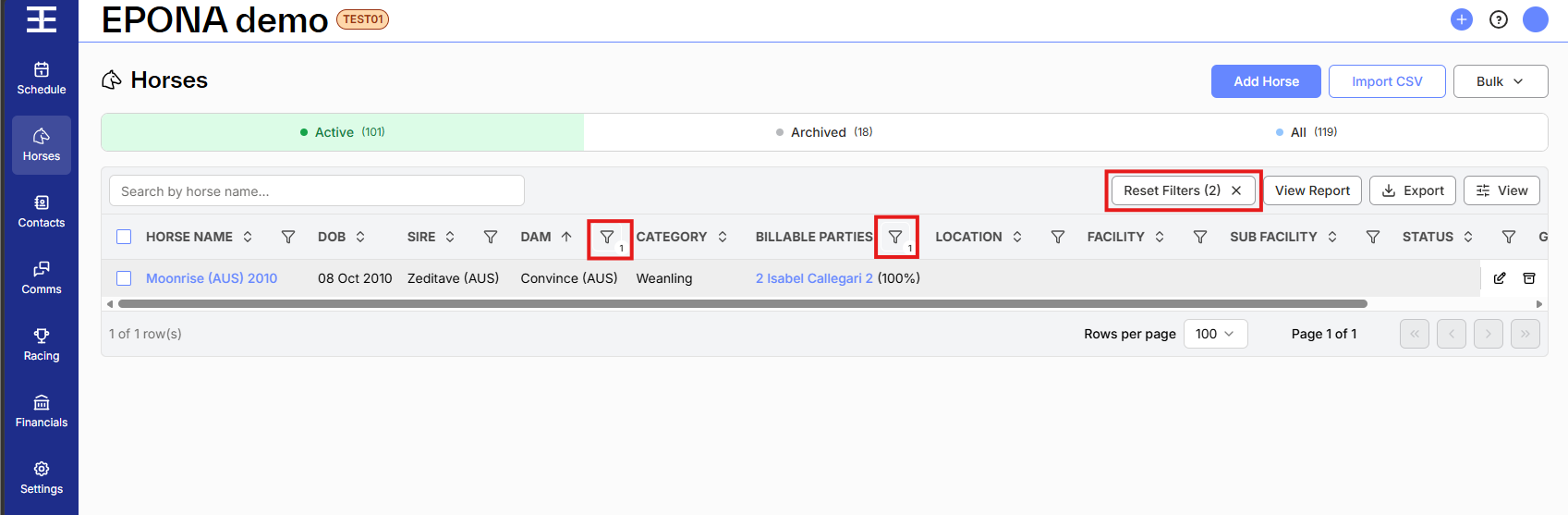
You can filter by more than one column at once, for example horse category and horse location. Just continue to click 'filter' above various columns and select additional filtering values, the list below will reduce according to your choices.
To clear all filtering from a list and return to reviewing the full list (all results) click 'Reset Filters' at top right to remove the filters you selected.