Ad Hoc Transactions and Charges
Procedures will create financial transactions automatically if there is a charge amount entered. Horse movements will also generate transactions automatically so long as the horse has daily charge rate set (for Agistment or Training).
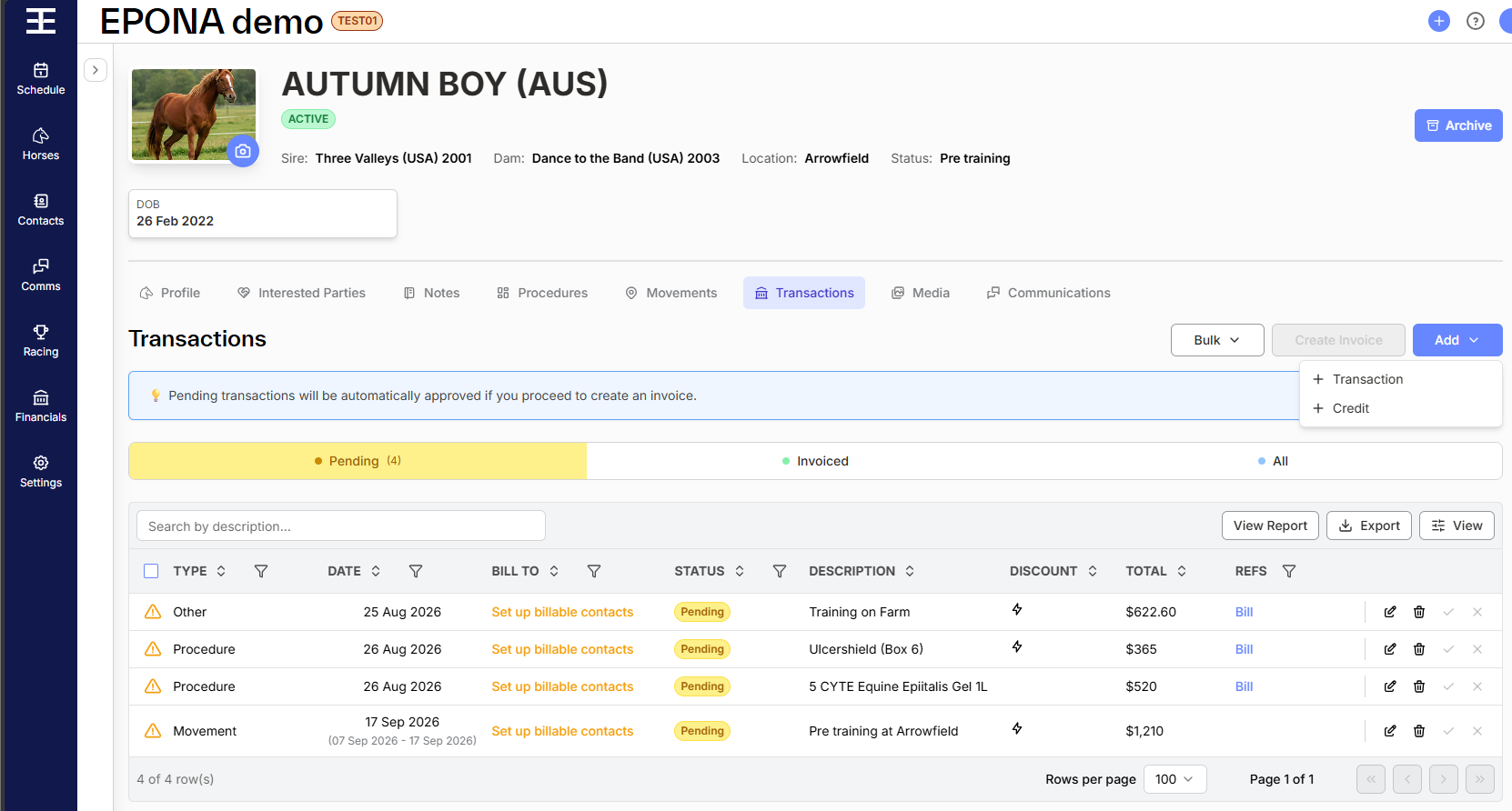
If there is a one-off transaction that needs to be added to a horse or contact that does not relate to a procedure or a daily charge, then this charge can be created via the Add Transaction option in the Transactions screen.
Transactions can be added via
The Ad Hoc Transaction slide-over lets you manually create custom transactions that are not automatically generated by procedures or movements. This is useful when you need to charge something specific — like a one off service/product, non-horse-related fee or group add daily charges.
Add Transaction:
- Select Horse or Contact
- Horse - will split the transaction across all billable contacts for the horse selected
- Contact - will add the transaction to the contact selected. A horse name can also be selected but this is optional and is for information purposes only - the selected client will be charged
- Select one or multiple horses or clients to charge
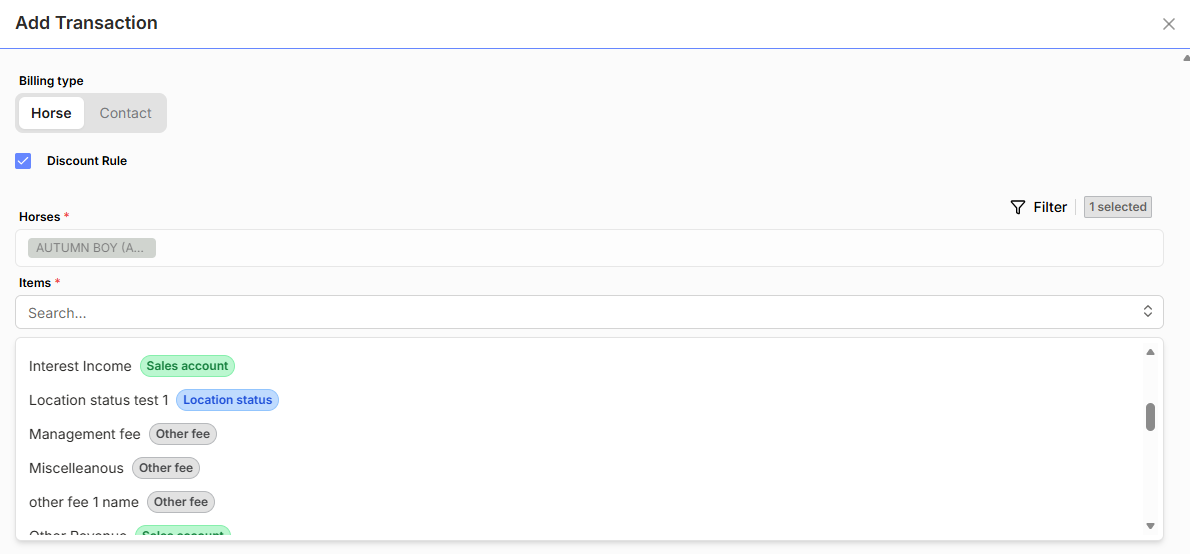
- You are able to select three different types of items to charge to the horse (or client) - these are differentiated by different badge colouring as follows:
1. Sales Account Code item:
- Price (excl. tax) → unit price to charge
- Quantity → number of units
- Discount → enter a percentage or fixed dollar amount
- Tax rate → enter the correct tax rate code for the system to calculate tax
- Amount and Total → automatically calculated based on price and quantity
- Description → appears on the contact’s invoice line item
Use this when you want to completely customize the charge details. You select a GL Income Account to receive the income, and set all items from scratch including charge amount, invoice description, tax code etc.
2. Daily Charge item:
- Select an "Other Fee" type item where Unit of Measure is configured as daily charge
- All fields (except discount) are prefilled based on the selected product or service.
You’ll need to choose a From and To date to generate charges for each day in that range. - The Tax field is fixed from the configuration for the 'daily charge' item selected, and cannot be edited.
3. Other Fees
Use this for charges unrelated to horses (non-procedure items), such as arena hire, agistment extras, or admin fees.
Depending on the Unit of Measure configured for the item:
- If Daily → you’ll see From and To date fields to calculate daily charges
- If Each → you’ll see the Quantity field instead
All fields will be prepopulated (except discount) according to the item configuration.
Review and Save
Once you’ve added all the transaction details:
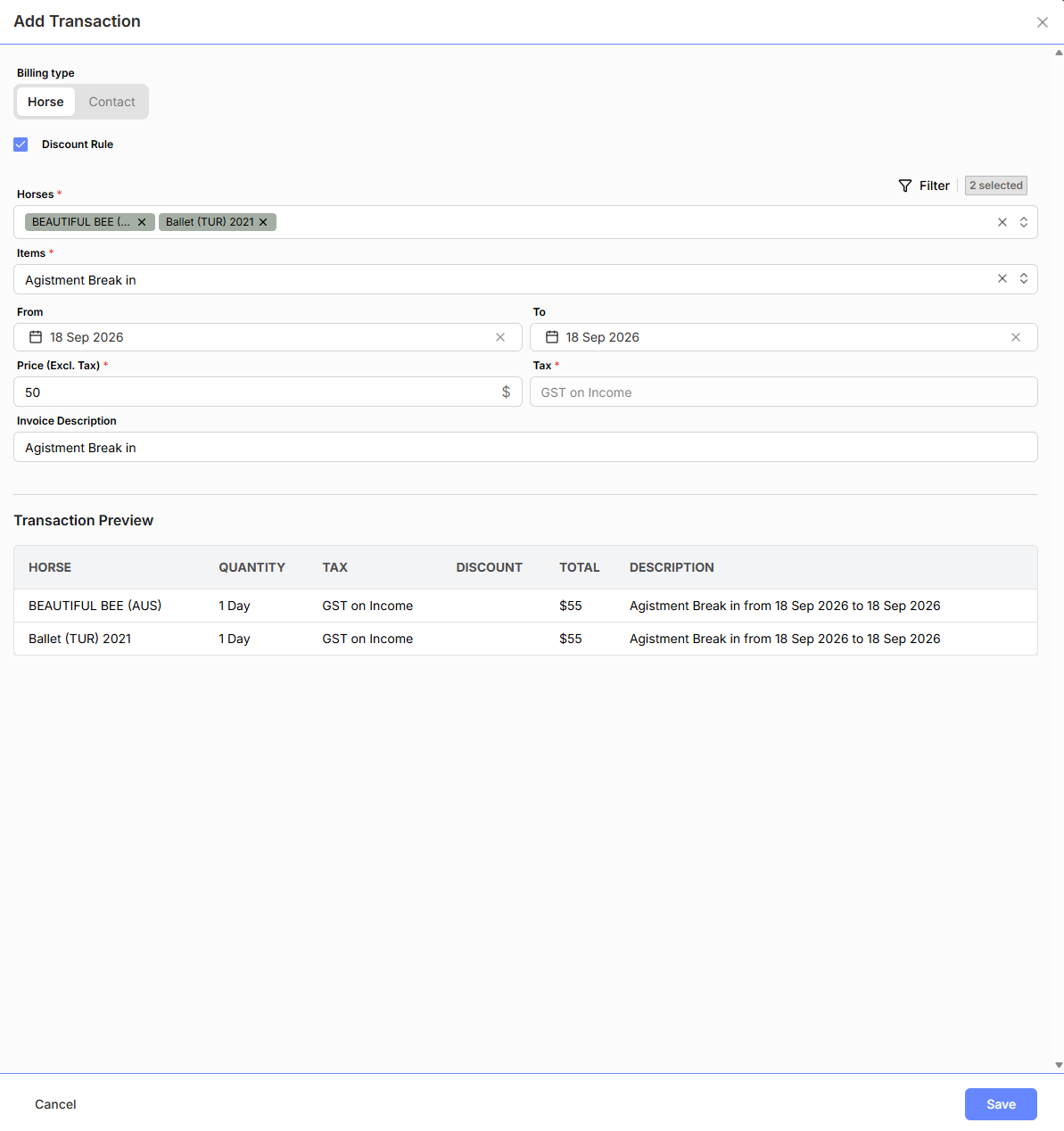
A summary of invoice line items with the breakdown of charges will appear at the bottom of the modal.
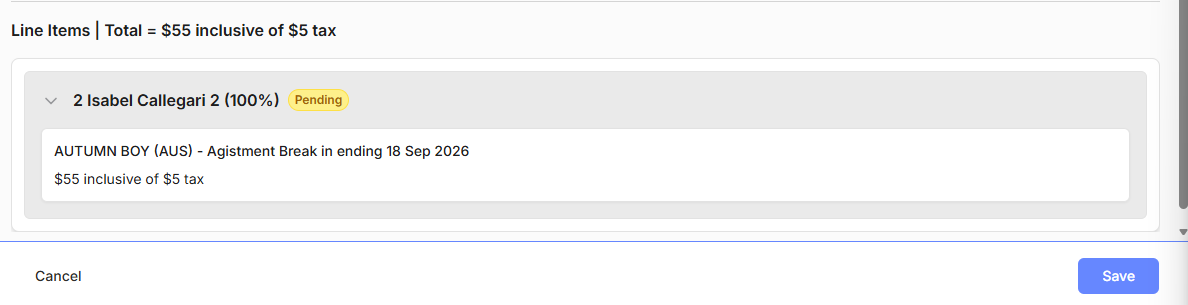
Review the details and save if everything looks correct.
If you’ve selected multiple horses, the summary will display a table showing the transaction created for each horse, instead of individual line items.