
(Mobile) Delete a user or account
There are two different things people mean by deleting a user in EPONA, and they have different outcomes.
Removing a user from a workspace stops that person accessing the workspace. Their EPONA login still exists, and the horses, procedures, transactions and notes they created stay in the workspace. An Admin does this in EPONA.
Deleting an EPONA account removes the person's login and their personal details from EPONA. This is done by request to support.
Remove a user from a workspace
Available to admins only.
Click Settings at left of screen, then click User Management. The User view lists everyone in the workspace, with columns for Name, Email, Role and Status. Your own row is marked (You) after your name.
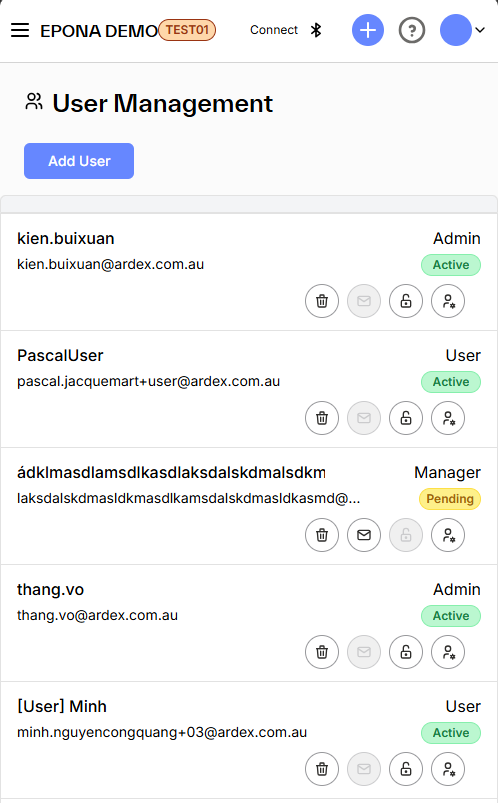
Each row shows its actions as separate icons at the right-hand side of the row, not in a menu. Hover over an icon to see its name. The actions are:
- Delete (bin icon) - removes the user from the workspace
- Send invitation (envelope icon) - shown only for users who have not accepted their invitation yet
- Reset password (open padlock icon) - shown only for active users
- Change user role (user and cog icon) - switch the user between Admin, Manager and User
Click the bin icon on the row for the user you want to remove. A confirmation appears, titled Remove User, asking "Are you sure to remove this user?". Click Confirm to remove the user, or Cancel to stop.
In this example the User view lists four users, and the action icons sit at the right of each row.
The user disappears from the list, and loses access to the workspace the next time they open EPONA on web or mobile.
Note - you cannot remove yourself. The bin icon does not appear on your own row. If you need to leave the workspace and you are the only Admin, use Add User at top right-hand corner of the User view to add another Admin first, then ask them to remove you.
Note - removing a user does not delete their work. Horses, procedures, movements, transactions and notes they created belong to the workspace and stay exactly as they are.
Delete your EPONA account
EPONA does not let you create your own account. You get an EPONA login only when a workspace Admin invites you by email, and neither the web app nor the mobile app offers a sign-up. For that reason there is no Delete account option inside EPONA.
To have your EPONA account and personal details deleted, email support@ardex.com.au from the email address your EPONA login uses, and ask for your EPONA account to be deleted. Include the name of your workspace.
Support will reply to confirm the request before anything is removed.
Note - the records held in a workspace belong to the business that owns the workspace, not to the individual user, and are not removed when your account is deleted. Transactions, invoices and the horse records you worked on stay with the business.
On the mobile app
Open Settings using the cog icon at top right of the screen. Settings offers Edit Profile, How it works and Sign Out.
Sign Out signs you out and clears your EPONA data from the device. It does not delete your account. To delete the account itself, follow Delete your EPONA account above.