
(Mobile) Take a photo or record a voice note
Add a photo or voice note to a horse's media from your phone
Take a photo
- Open the horse. Tap the horse head icon at the bottom of the screen, then tap the horse's name.
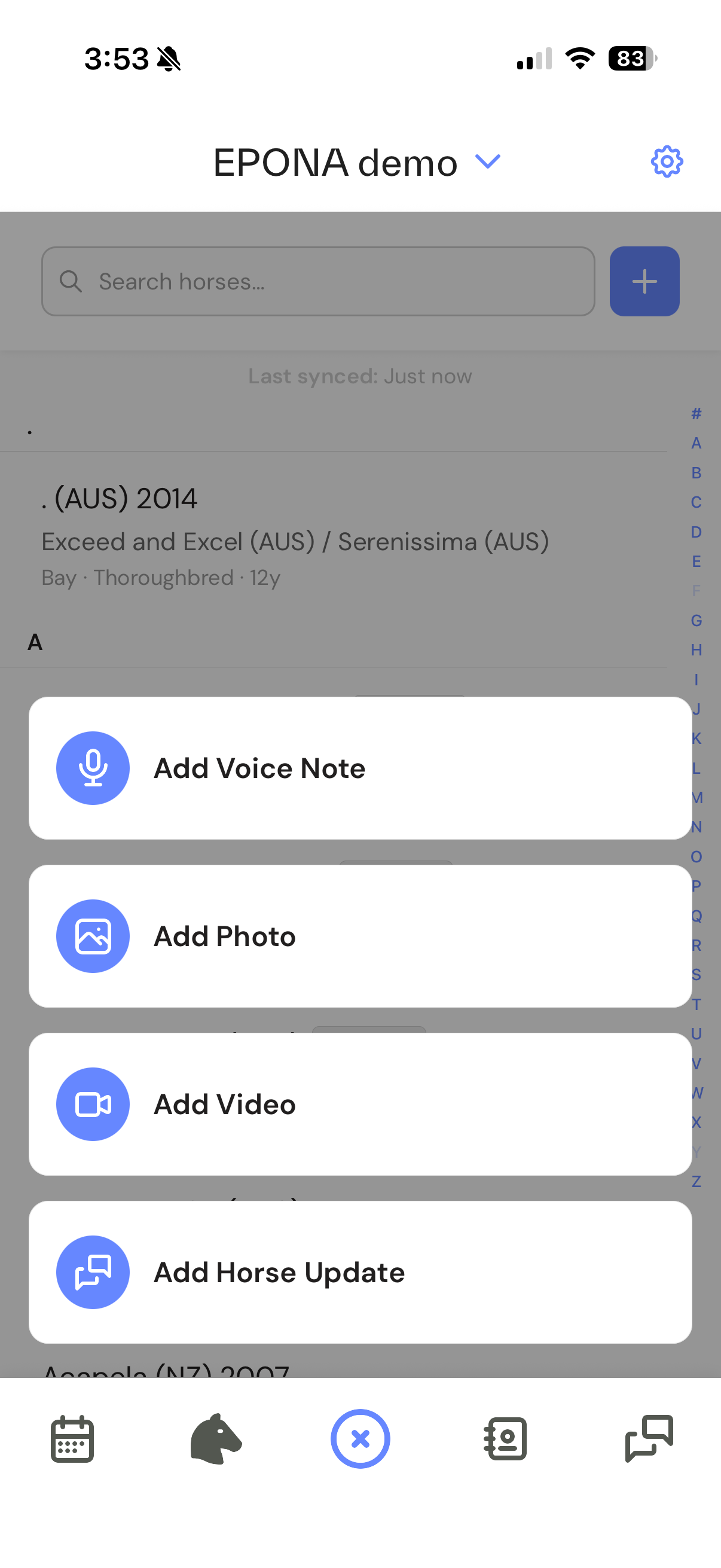
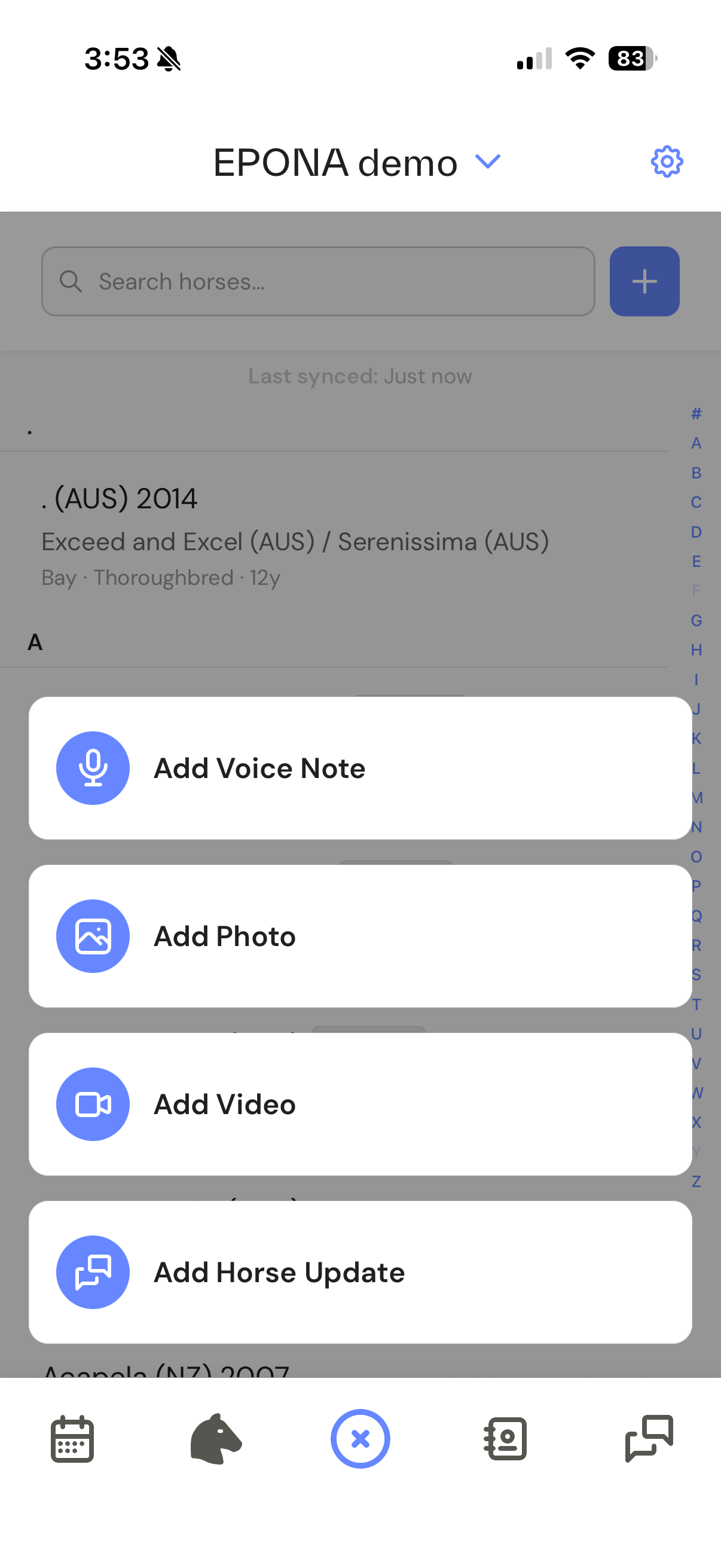
- Tap + in the centre of the bar at the bottom of the screen.
- Tap Add Photo, then Take Photo. To use a photo already on your phone, tap Choose from Library instead.
- If the app asks for access to your camera or photos, allow it.
- Take the photo. The Add Media screen opens with the horse already selected.
- Tap Save.
The photo is added to the horse's Media tab, and a copy is saved to your phone's photo library if you allowed it.
Record a voice note
- Open the horse, then tap + in the centre of the bar at the bottom of the screen.
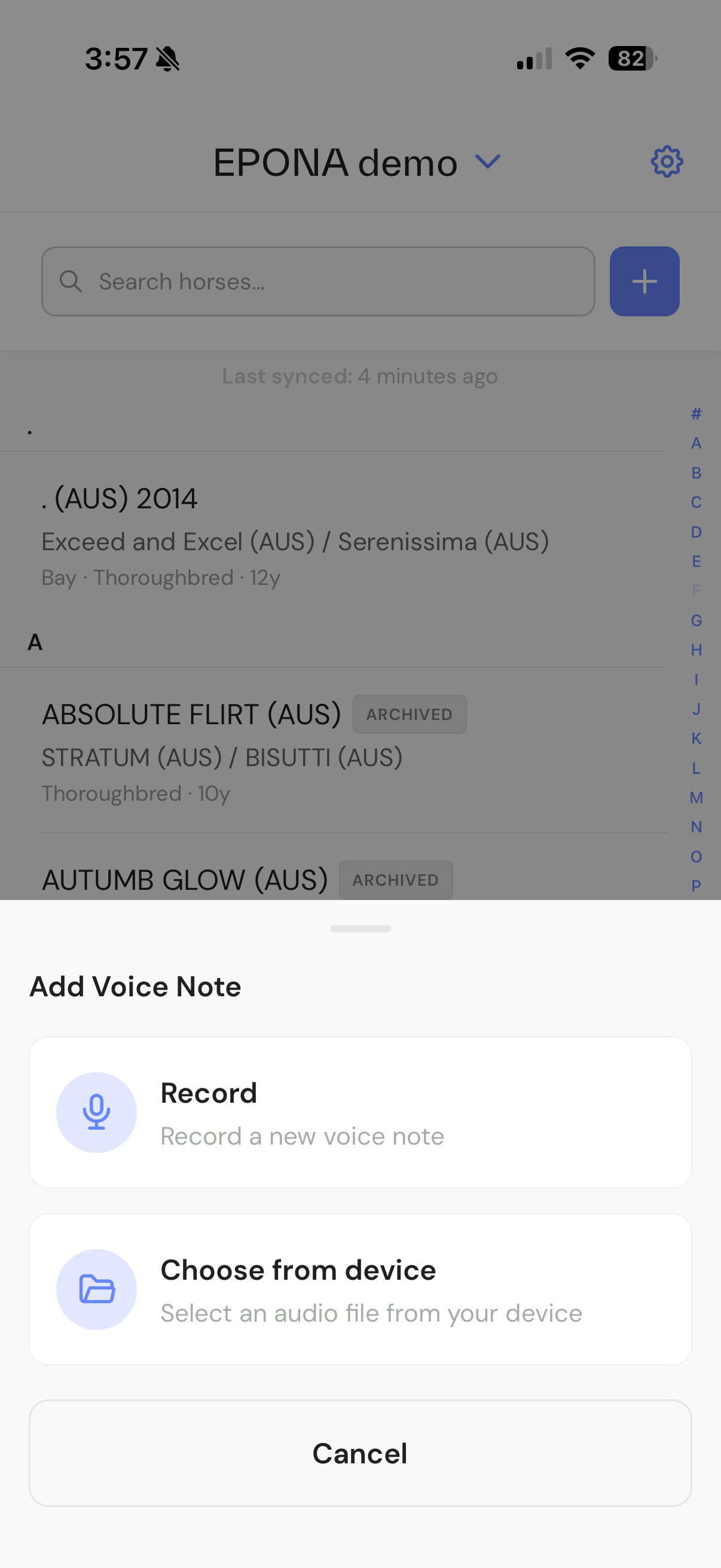
- Tap Add Voice Note, then Record. To use an audio file already on your phone, tap Choose from device instead.
- If the app asks for access to your microphone, allow it.
- Tap Start Recording. Tap Stop when you are done, then tap Continue.
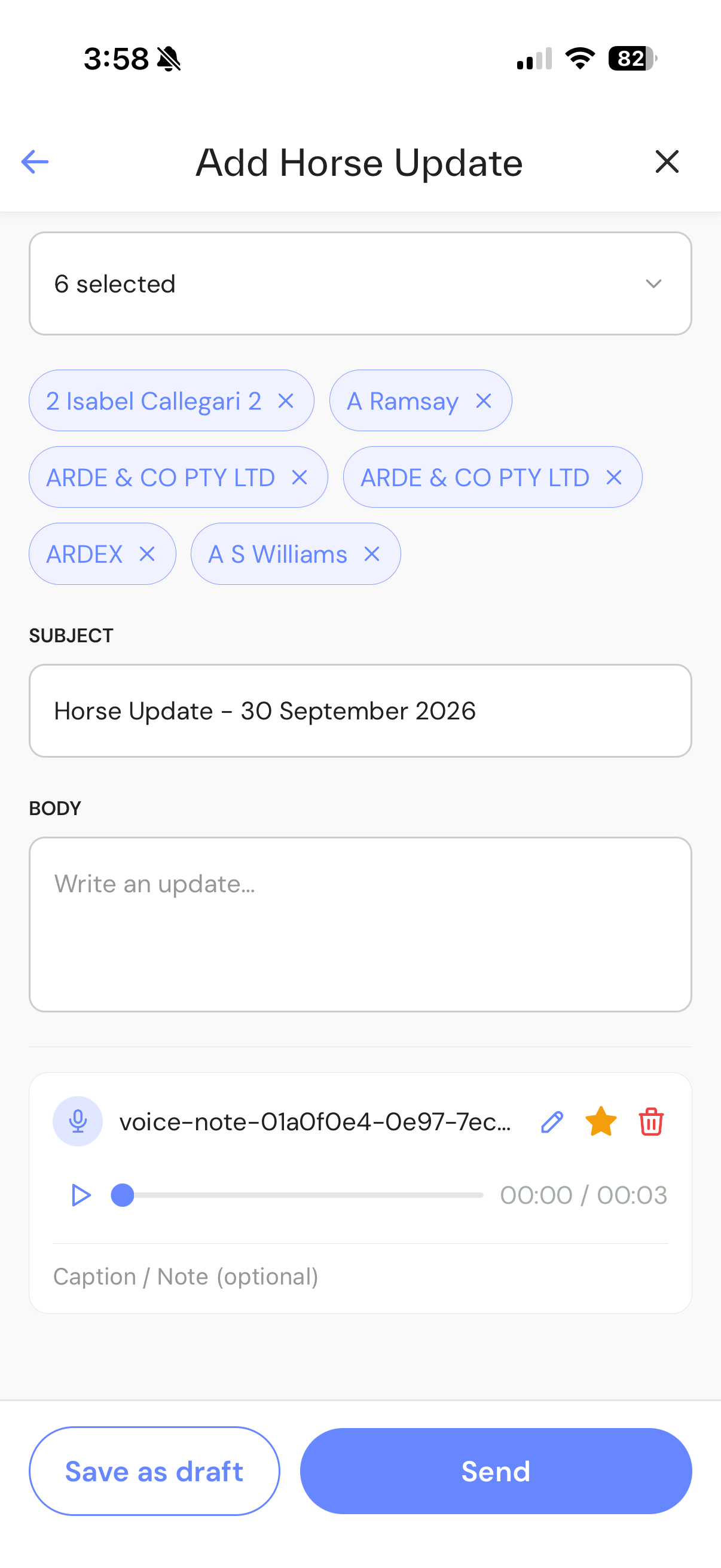
- To save the voice note to the horse without sending an update, turn off Create horse update, then tap Save.
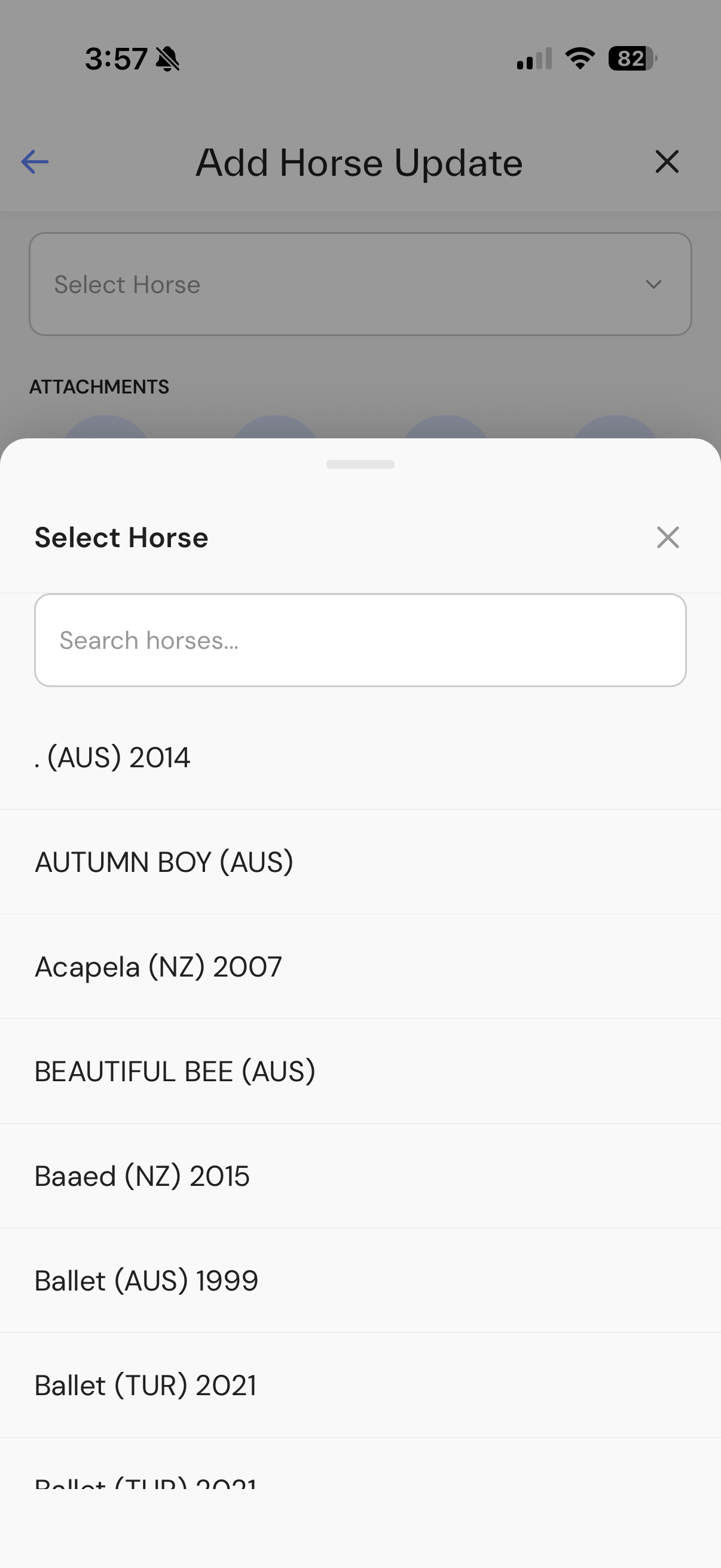
Note - if you start from + without opening a horse first, choose the horse in the Horse field before saving.
If the upload fails, the app shows Upload failed. Open the horse's Media tab to check it. Files you added on your phone show Pending, Uploading..., Synced or Failed.
Related articles: (Mobile) Send a horse update, (Mobile) Work offline