
Void or Dismiss an Invoice
Where the amount, the billable party or the charges on an invoice are wrong, void the invoice in EPONA rather than editing it in your accounting system. Editing it there creates discrepancies between the two.
Voiding does not delete anything. The invoice stays in the list with a status of Void, and the underlying transactions remain in EPONA.
Void or Dismiss
EPONA offers one of two actions on an invoice, depending on how far it has got:
- Void - for an invoice that has already reached your accounting system. It is voided there as well.
- Dismiss - for a draft invoice that has not yet reached your accounting system. Nothing is sent to your accounting system.
You will only ever see one of the two on any given invoice, so there is no choice to make. Both release the invoice's charges to be invoiced again, and both apply to credit notes as well as invoices. On a credit note, the wording refers to releasing its items to be credited again.
Note - Available to Admins and Managers only. Financials is not available to users on the User role.
Where to find it
Void or Dismiss an invoice via;
- Financials/Invoices - the bin icon at the right-hand end of the invoice row (hover over it to see Void or Dismiss)
- Financials/Invoices - click the View / Edit icon at the right-hand end of the row to open the invoice, then use the red Void (or Dismiss) button at bottom right, beside Close
- Contact profile/Invoices - the bin icon at the right-hand end of the invoice row (the invoice view opened from a contact does not carry the Void button; use the row icon)
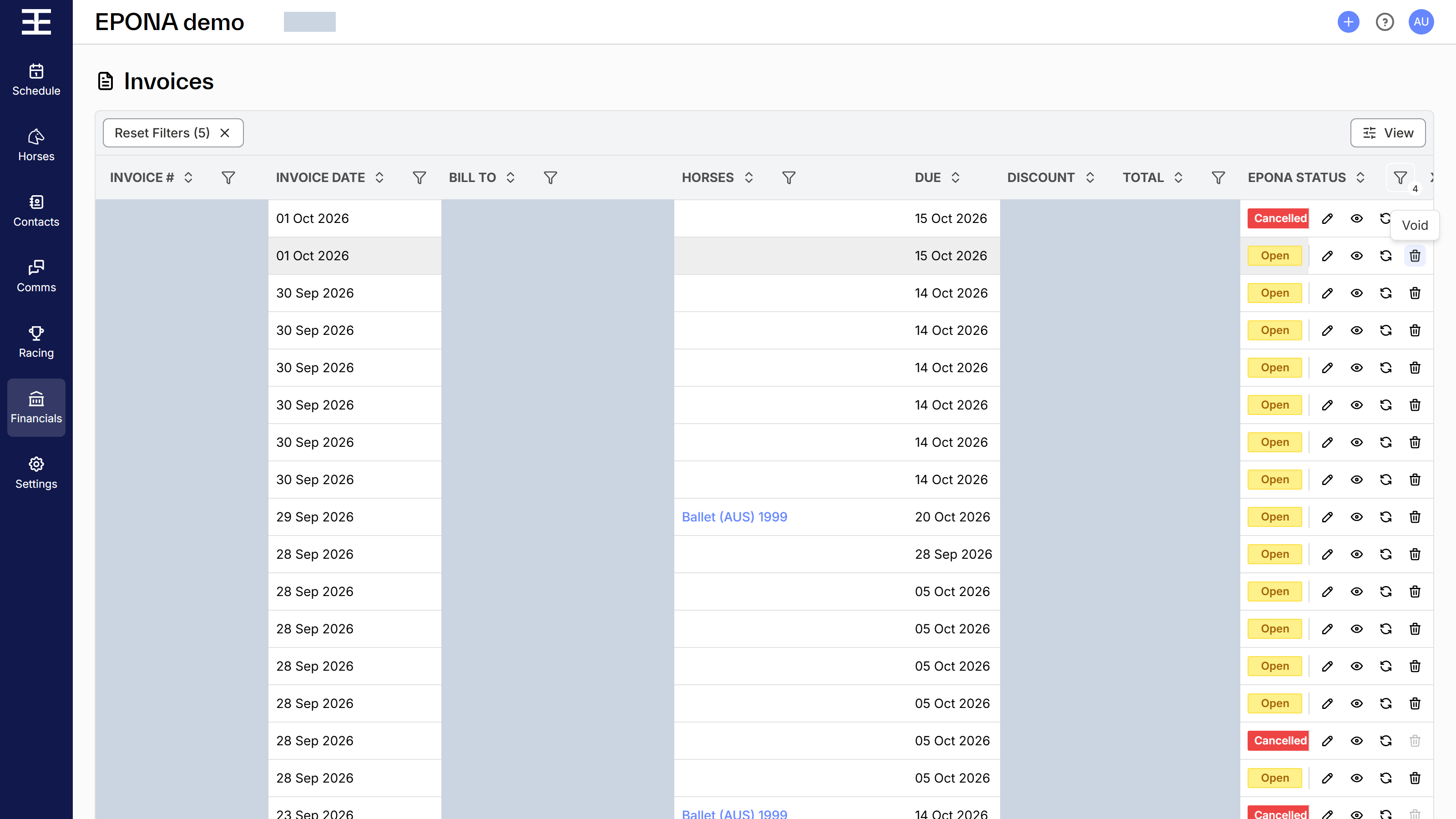
To void an invoice
Click Financials at left of screen, then Invoices. Find the invoice in the list, then click the bin icon at the right-hand end of its row.
A confirmation appears headed Void Invoice (or Void Credit Note for a credit note), reading "This will void the invoice in Xero and release its charges to be invoiced again", naming whichever accounting system your workspace is connected to. Click Confirm to proceed, or Cancel to leave the invoice as it is.
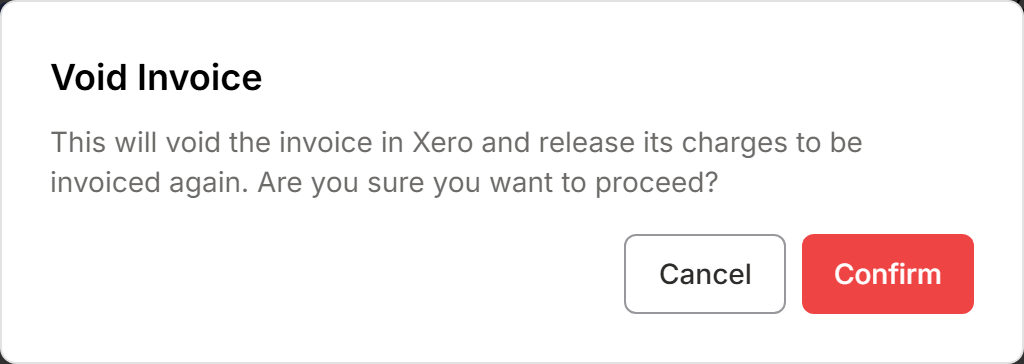
Where other billable parties hold their own invoices against the same transactions, the confirmation also tells you so, for example "2 other contacts still hold invoices against these transactions — their shares are not affected". Only the invoice you are voiding is reversed; the other parties' invoices stand.
For a draft, the confirmation is headed Dismiss Draft Invoice (or Dismiss Draft Credit Note).
What happens after you confirm
The invoice's accounting status becomes Void. It is shown in the Xero Status column, which is named for your accounting system. The bin icon no longer appears on that invoice.
The charges are released. On the Transactions view, each affected transaction returns to Approved and is available to invoice again. Where another billable party still holds an invoice for their share, the transaction shows Partially Invoiced instead.
On the Transactions view, hover over the invoice reference against a released transaction to see Voided, or Dismissed where a draft was dismissed.
Note - voiding cannot be undone. To bill the charges again, create a new invoice from the released transactions.
Invoices created in your accounting system
Where an invoice was created directly in Xero or MYOB rather than in EPONA, Void still voids it in your accounting system. There are no EPONA charges behind it, so nothing is released to be invoiced again, and the confirmation says so.
When a void will not go through
Your accounting system has the final say. Xero, for example, refuses to void an invoice that already has a payment or a credit note allocated against it. EPONA greys out the bin icon on an invoice it knows will be refused (Paid, Partially Paid or Closed). Where your accounting system refuses anyway, EPONA shows its message and leaves the invoice untouched. Reverse the payment or the allocated credit note in your accounting system first, then void the invoice in EPONA.
Note - while your accounting connection is disconnected, a banner shows at the top of the screen and the Void button in View / Edit is greyed out, because the void has to be carried out in your accounting system. Admins can click the link in the banner, or go to Settings/Accounting Settings, to reconnect. Dismissing a draft still works while disconnected, because a draft has not left EPONA.
Voiding an invoice is not the same as cancelling a charge
Void reverses the invoice and hands its charges back, ready to be invoiced to someone else or at a different amount. The charges themselves remain.
Where the charge itself should not exist at all, leave the invoice alone and use Cancel Transaction on the Transactions view instead.