
Xero 2: Connect EPONA to Xero
Connecting links your EPONA workspace to your Xero organisation. Nothing else in the integration works until it is done.
Available to admins only.
To connect
Click Settings in the left-hand navigation, then Accounting Settings. The Accounting Integration tab opens, showing a card for XERO with a Connect button.
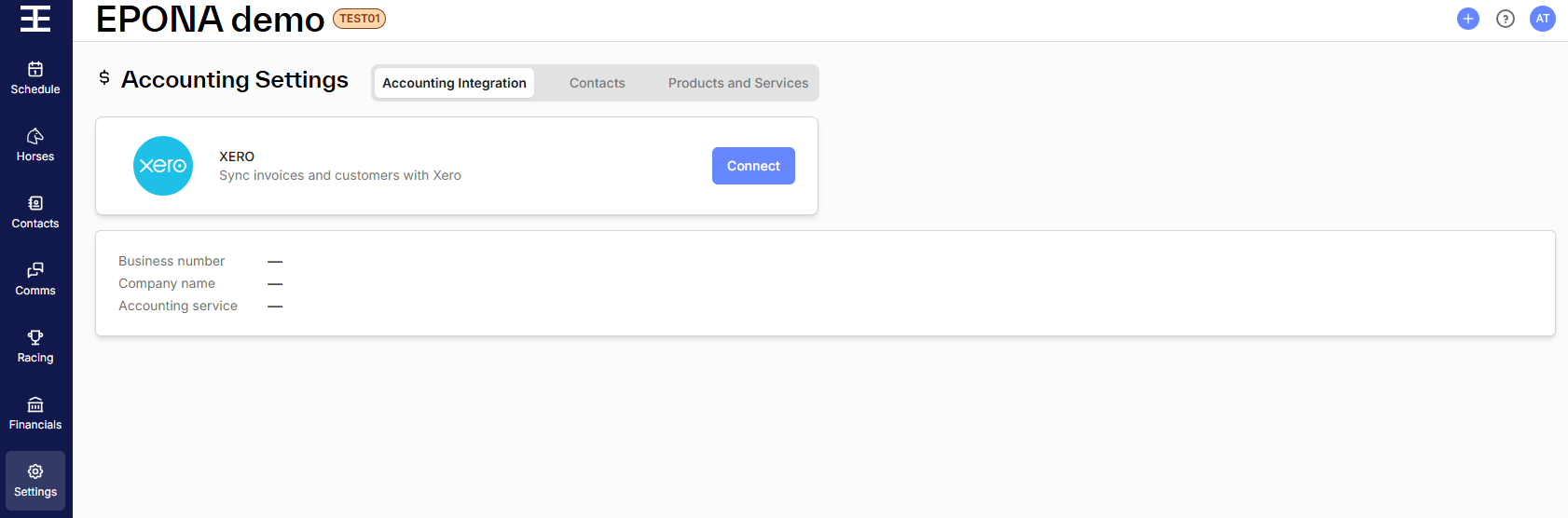
- Click Connect. A connection window opens over EPONA, showing Xero with the status Unauthorized.
- Click Authorize. Xero opens in a new window.
- Log in to Xero. The login page says you are continuing to EPONA by Ardex Technology.
- Under Select an organisation, choose the Xero organisation to connect, then click Allow access. This is the choice that ties the workspace to that organisation for good.
- Back in the connection window, the status now reads Connected. Check that Default Tenant shows the right organisation, then click Save (close the window if it stays open).
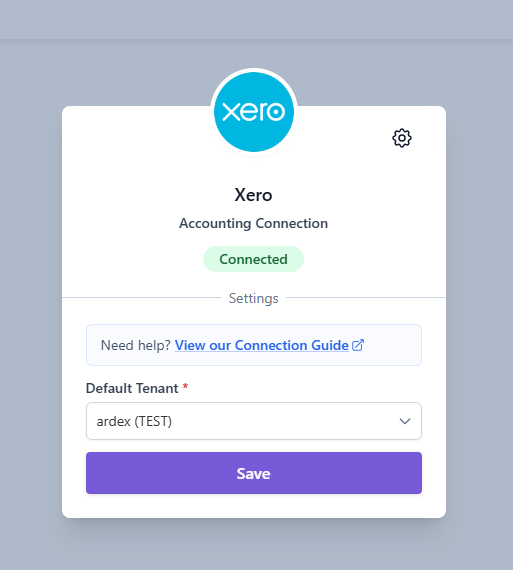
EPONA shows Changes Saved Successfully, and the button on the XERO card changes to Disconnect, in red.
Check the summary below the card before moving on. It shows the Business number, Company name and Accounting service of the organisation you connected, and is the quickest way to spot a connection made to the wrong organisation.
What EPONA can see in Xero
Xero's consent screen asks to view and manage attachments, business transactions, contacts and organisation settings, and to view the general ledger and reports. In Xero, the connection is listed under Connected apps as EPONA by Ardex Technology.
What EPONA brings across when you connect
- Your active income and expense accounts
- Your tax rates
- Your default sales invoice payment terms, into Settings/Financial Settings (first connection only)
If the connection is refused
EPONA shows a dialog headed Something went wrong!, and disconnects again. Click Ok to close it.
- "This workspace can only be connected to a xero instance in [country]" - the Xero organisation's country does not match your workspace
- "Connecting to [organisation] failed. This workspace can only be reconnected to [organisation] …" - the workspace has been connected to a different Xero organisation before. Reconnect to the original organisation, or contact support
Refreshing accounts and tax rates
EPONA reads accounts and tax rates only when you connect. To bring across an account or tax rate added in Xero since, click Disconnect, then Connect again and choose the same organisation.
To disconnect
Click the red Disconnect button on the XERO card. EPONA disconnects straight away — there is no confirmation step.
Note - disconnecting removes EPONA's access to Xero, so you sign in to Xero again when you reconnect. It deletes no invoices, contacts or settings in either system: links stay as they are, and reconnecting to the same organisation picks up where it left off.
While the workspace is disconnected:
- A yellow banner at the top of Invoices and Transactions reads "Accounting integration is no longer connected. Click here to reconnect." (managers see "Accounting integration is not connected. Contact your workspace administrator(s).")
- Create Invoice on the Transactions view is unavailable, and invoices already in Xero cannot be refreshed or voided
- End of Period still creates invoices, but they won't reach Xero — they show Sync Failed until you reconnect and refresh them
When EPONA disconnects on its own
If Xero rejects EPONA's access — for example the app was removed from Xero's connected apps — EPONA marks the workspace as disconnected and the yellow banner appears. Connect again, choosing the same organisation, to restore it.