
Reports
EPONA's reports turn whatever you're currently looking at into something you can print, file or send. Each one is generated from a list screen, and it covers exactly the rows your filters have selected, so the report always matches the view you built to answer the question.
This article covers the reports available, where each one lives, and the two ways to get them out.
The reports available
Location List Report - from the Horses screen. Every horse grouped by where it currently is, for walking the property against an accurate list.
Horse Location Status - also from the Horses screen. One line per horse showing its status as at a date you choose, for answering where each horse stood on a particular day.
Procedures Report - from the Procedures screen. Procedure spend grouped by category, with a subtotal per category and a total.
Transactions Report - from the Transactions screen under Financials, and from the Review Transactions step of End of Period. Billable activity grouped by horse and broken down by who's being billed.
Note - reports are available to Admins and Managers only. If you're on the User role the View Report and Export options won't appear.
Where to find them
Every report works the same way. Open the list screen, filter it down to what you want, then use the View Report or Export buttons at the top right of the list, above the table and to the left of the View option. The Horses screen has two reports, so View Report there opens a dropdown for you to choose between them. Everywhere else it opens the one report straight away.
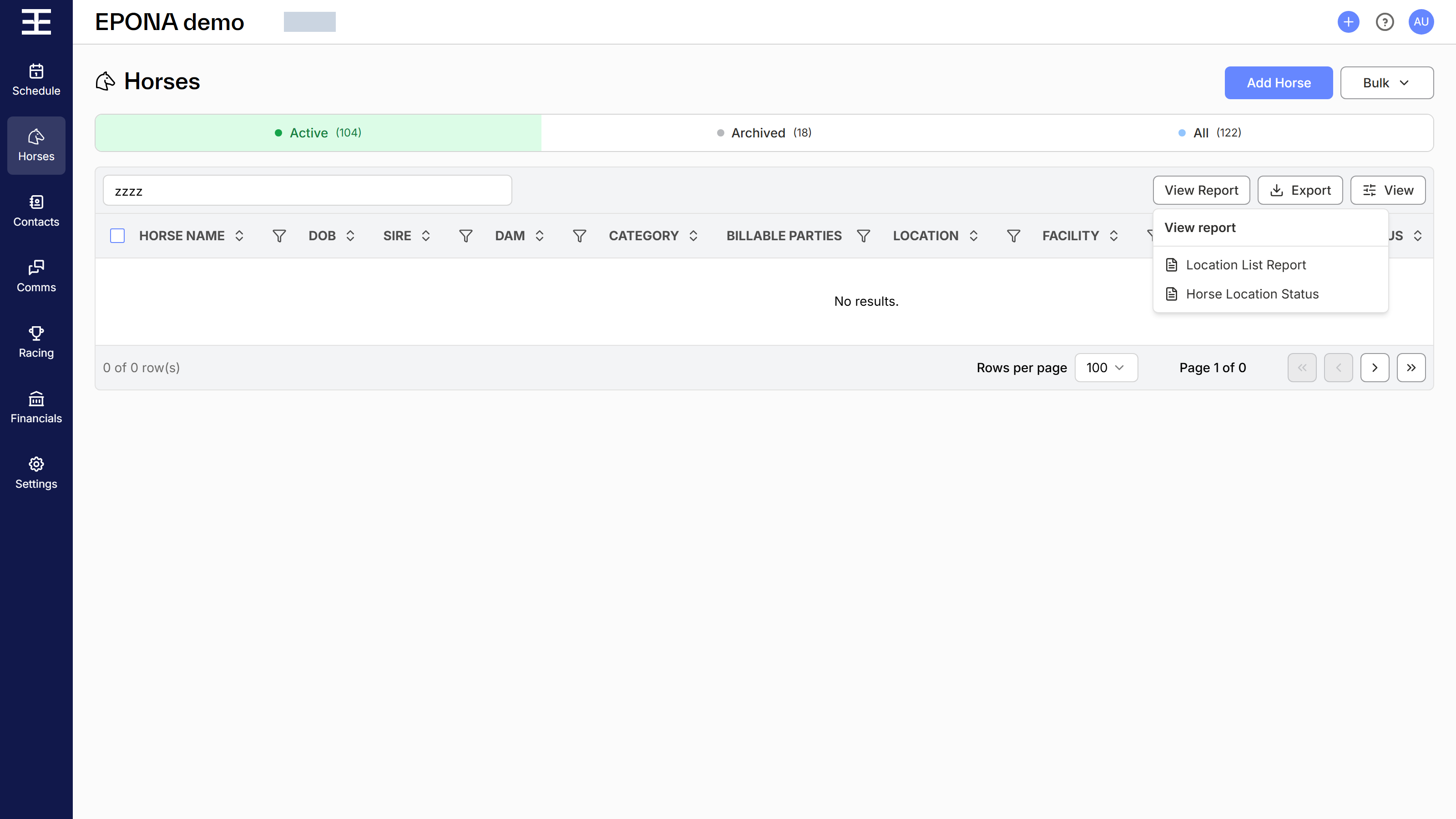
View Report or Export
View Report opens the report inside EPONA so you can check it without leaving the screen. Export downloads it as a file to keep or send — choose Export as CSV, Export as Excel or Export as PDF from the menu.
Both pull from the same data, so what you see in View Report is what you'll get when you Export.
Note - the Location List Report is the one exception. Departed horses are left out of the printable report but kept in the export, because the two get used for different things — see the Location List Report article.
What the filters do
Reports never ask you for a date range. With one exception they take their scope from the list you generated them from, which means the filtering you already know how to do is the only control you need.
The exception is Horse Location Status, which asks for one thing - an Effective date. That sets the day each horse's status is worked out against, and it defaults to the date the horse list is already showing. Change it and the report reloads against the new date.
Two things worth knowing:
The report covers every row matching your filters, not just the rows on screen. You don't need to page through the list first.
Filters on the Transactions screen carry through to the report, but filters applied during End of Period do not — that step always reports on everything in the period.
What's in the header
Every report carries your business name, your business logo and the date it was generated. The name and logo come from Settings, under Business Information. If your workspace has no logo configured, the header renders as text only.