
Horse Brand
Overview
The Horse Brand feature lets you associate a brand with each horse in your workspace. Brands help you organise and identify horses by ownership, stud, or commercial identity, and they appear on the horse profile and on the Location List Report.
You can link a brand when adding a new horse or at any time from the horse's profile. When linking, you can choose from brands already used in your workspace or, as an Admin or Manager, create a new one on the spot.
Who Can Do What
The table below summarises permissions across roles:
Role | Can Link Brand to Horse | Can Create New Brand | Can Manage Horse Brands (Settings) | ||
Admin | ✓ Yes | ✓ Yes | ✓ Yes — full access | ||
Manager | ✓ Yes | ✓ Yes | ✗ No — contact your Admin | ||
User | ✓ Yes | ✗ No | ✗ No | ||
ℹ️ Note: Settings > Horse Brands (editing and archiving brands) is restricted to workspace Admins. Managers can create brands from a horse's profile. Users can link existing brands but cannot create new ones. | |||||
Linking a Brand When Adding a Horse
When creating a new horse record, you'll find the Brand field in the horse details form. Here's how to use it:
1 | Open Add Horse | Navigate to the Horses section or Quick add and select Add Horse. |
2 | Fill in horse details | Complete the required fields, Horse name, date of birth, etc. |
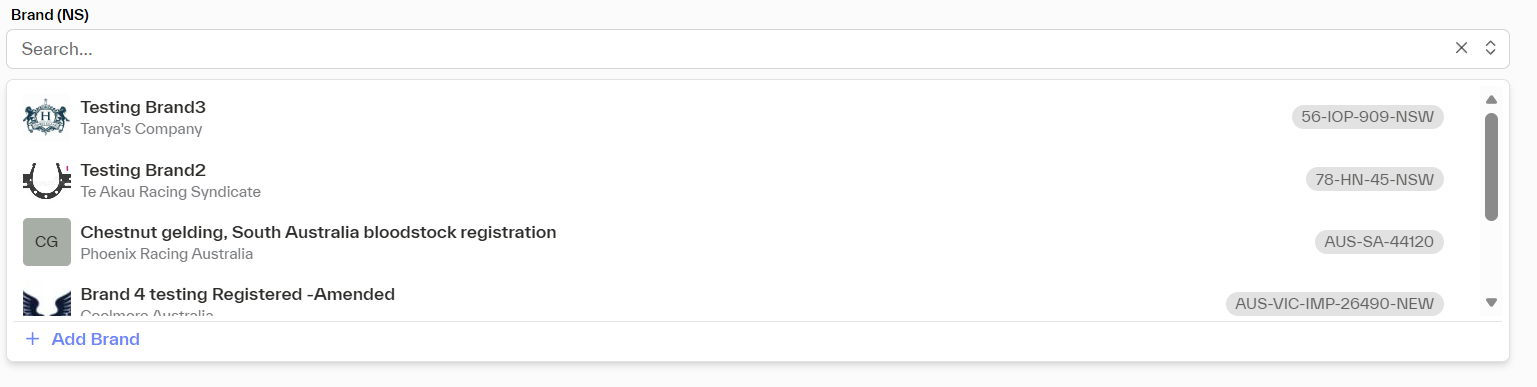
3 | Find the Brand field | Scroll to the Brand (NS) field within the form. Brand (OS) and Markings sit beside it as free text. |
4 | Select or create a brand | Start typing to search existing workspace brands, or choose '+ Add Brand' at the bottom of the list to add one on the fly (Admins and Managers). |
5 | Save the horse | Complete the rest of the form and save. The brand is now linked to the horse. |
Brands Filled In from the Stud Book
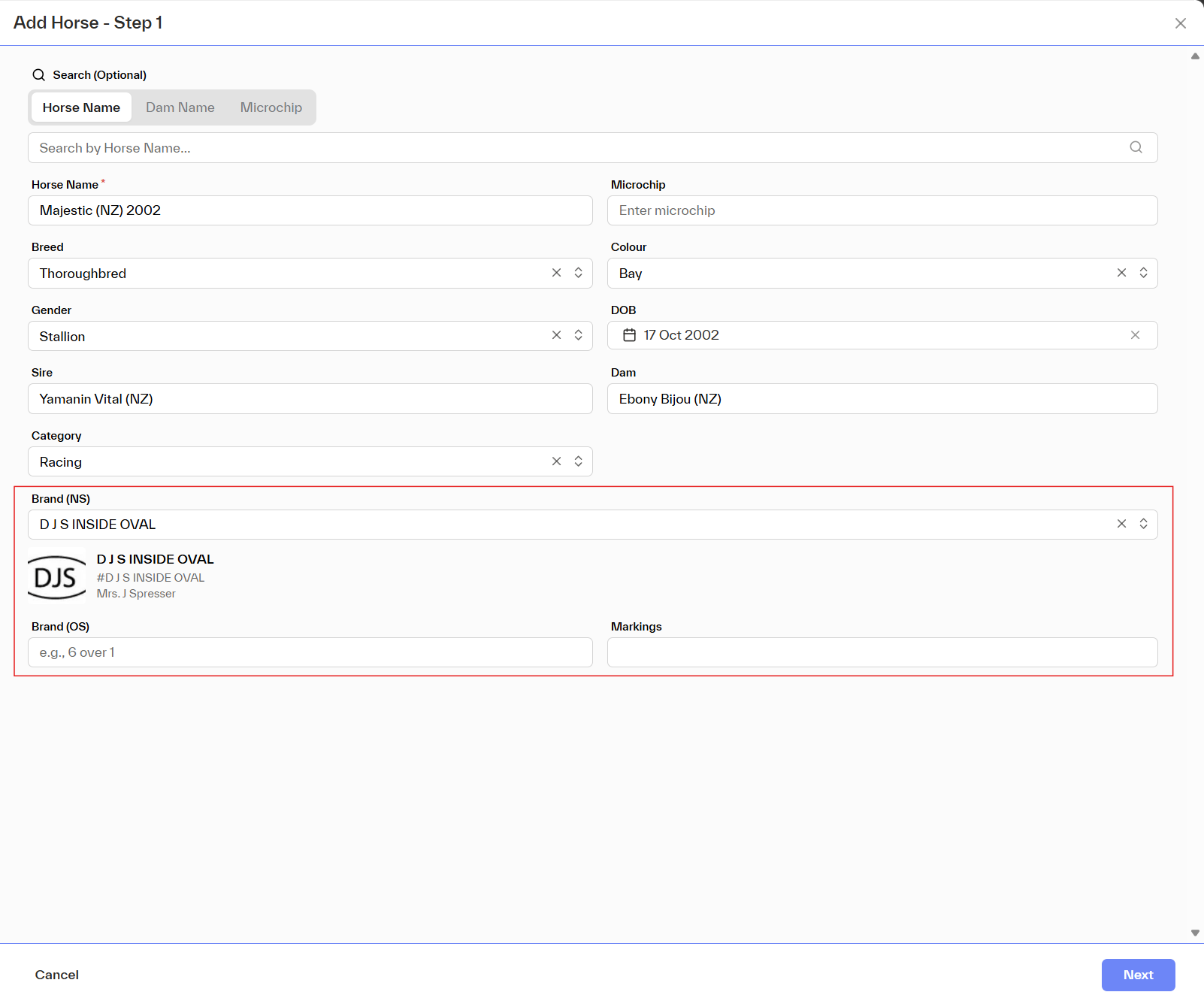
EPONA is integrated with the Australian Stud Book. When you add a horse, you can search for it at the top of Add Horse – Step 1 by Horse Name, Dam Name or Microchip. Choosing the matching horse from the results fills in its details, including its brands:
- Brand (OS) – filled in with the off-side brand held by the stud book, e.g. 4 over 6 (if the stud book holds none, Brand (OS) is left empty)
- Brand (NS) – the horse's near-side brand is selected for you. If your workspace already has that brand, the existing brand is used. If it does not, the brand is added to your workspace's brands, with its number, description, owner and image, and selected.
A preview of the selected brand appears below Brand (NS). Check it, and choose a different brand from Brand (NS) if it is not right.
ℹ️ Note: if the stud book holds no near-side brand for the horse, or the matching brand in your workspace has been archived, Brand (NS) is left empty. Choose a brand yourself, or leave it for later.
ℹ️ Note: a brand added from the stud book stays in your workspace's brands even if you cancel adding the horse. Admins can edit or archive it in Settings > Horse Brands like any other brand.
You can also update the brands of a horse you already have. Verify Studbook on the horse profile compares Brand (NS) and Brand (OS) with the stud book, and a near-side brand that is not yet in your workspace is added to your brands only if you tick it and confirm. See Verify Horse Against Studbook.
Linking or Updating a Brand from the Horse Profile
You can add or change a horse's brand at any time directly from their profile — no need to edit the full horse record.
1 | Open the horse profile | Navigate to the horse and open their profile page. |
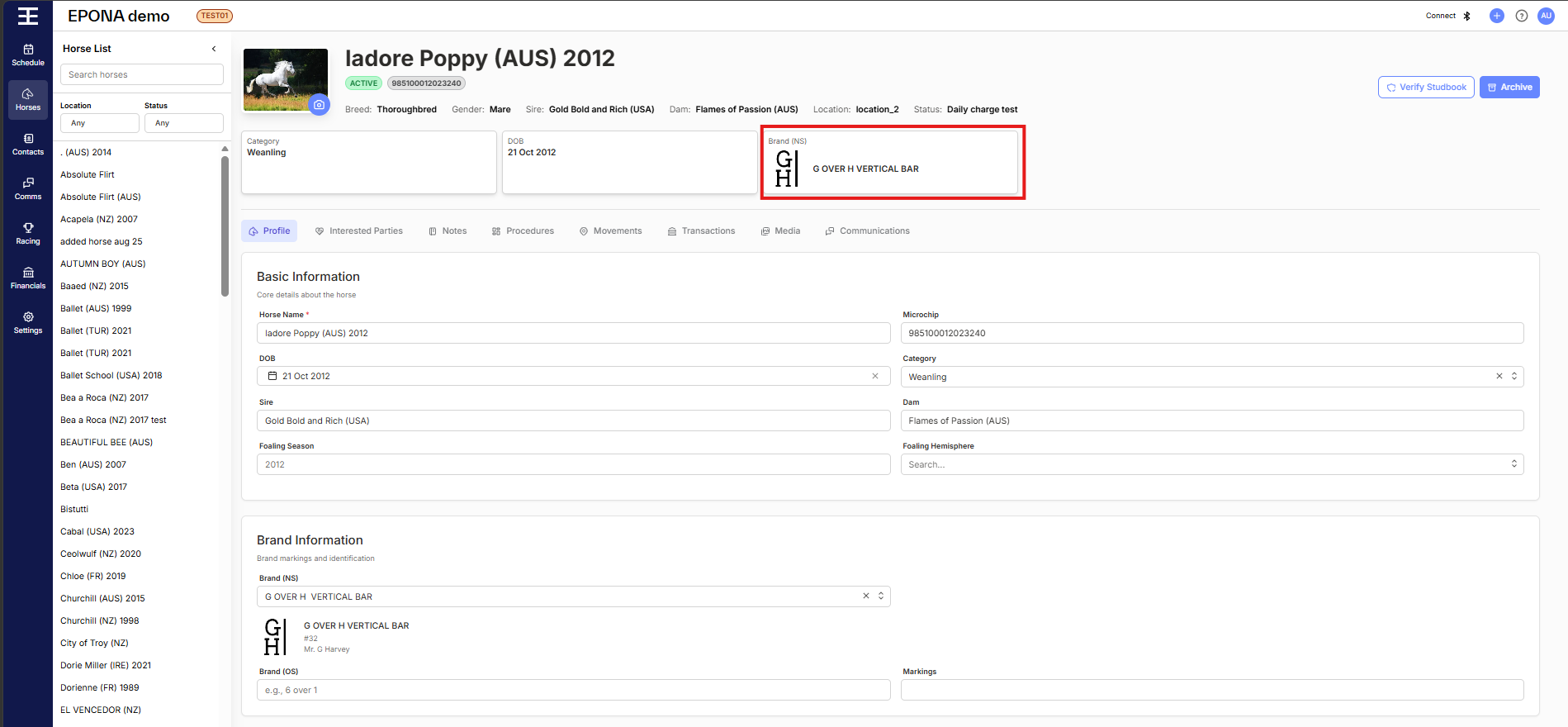
2 | Locate Brand Information | On the Profile tab, find the Brand Information card. |
3 | Open the brand list | Click the Brand (NS) field to open the list of your workspace brands. |
4 | Choose or create a brand | Search for an existing brand in your workspace, or select '+ Add Brand' at the bottom of the list to create one (Admins and Managers). |
5 | Save | Click Save to keep your changes. The brand then shows in the summary at the top of the horse profile. |
Using an Existing Brand vs. Creating a New One
When the brand selector opens, you have two options:
Option | When to Use | What Happens | ||
Select existing brand | The brand already exists in your workspace and you want to reuse it | The horse is linked to the existing brand. No new brand record is created. | ||
Create new brand | The brand doesn't exist yet and you need to add it | A new brand is created in the workspace and immediately linked to the horse. It's now available for all users to select. | ||
⚠️ Note: Once a brand is created, it is visible to everyone in the workspace. Please check existing brands before creating a new one to avoid duplicates. | ||||
Managing Horse Brands (Admins Only)
🔒 Admin only: Settings > Horse Brands is only accessible to workspace Admins. Other users will not see this option. |
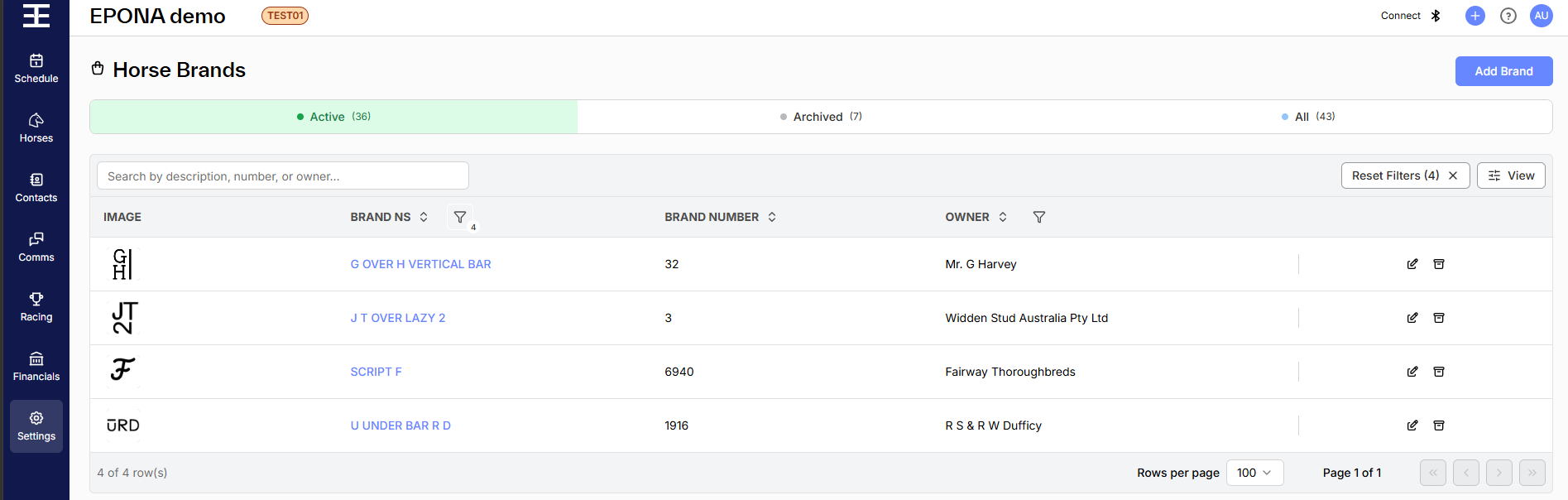
- View all brands with their image, brand number and owner, across the Active, Archived and All tabs
- Edit a brand's number, description, owner or image
- Add a new brand with Add Brand at top right
- Archive a brand (it will no longer appear in the dropdown for new links), and restore it from the Archived tab
Accessing Horse Brands
1 | Go to Settings | Click Settings at left of screen. |
2 | Select 'Horse Brands' | Find and select Horse Brands in the Settings menu. |
3 | Manage as needed | Add, edit or archive brands from this screen. Brands cannot be deleted, only archived. |
Frequently Asked Questions
Can I link more than one brand to a horse?
Each horse has one near-side brand, Brand (NS), chosen from your workspace's brands, plus Brand (OS) and Markings as free text. If the horse's brand changes, you can update it from the horse profile at any point.
I can't find the brand I'm looking for. What should I do?
Use the search field in the brand selector to look it up. If it genuinely doesn't exist yet, an Admin or Manager can create it on the spot. If you suspect it was archived, ask your workspace Admin to check the Archived tab under Settings > Horse Brands.
I created a brand by mistake. Can I delete it?
Brands cannot be deleted, only archived. If you have created a duplicate or made a typo, ask your Admin to archive it via Settings > Horse Brands.
Will existing horses without a brand still work?
Yes, the Brand field is optional. Horses without a brand are unaffected and continue to work normally. You can add a brand to them at any time.
Who can see brands?
All users in the workspace can see brand information on a horse's profile and in reports. Settings > Horse Brands is visible only to Admins.