Horse Media
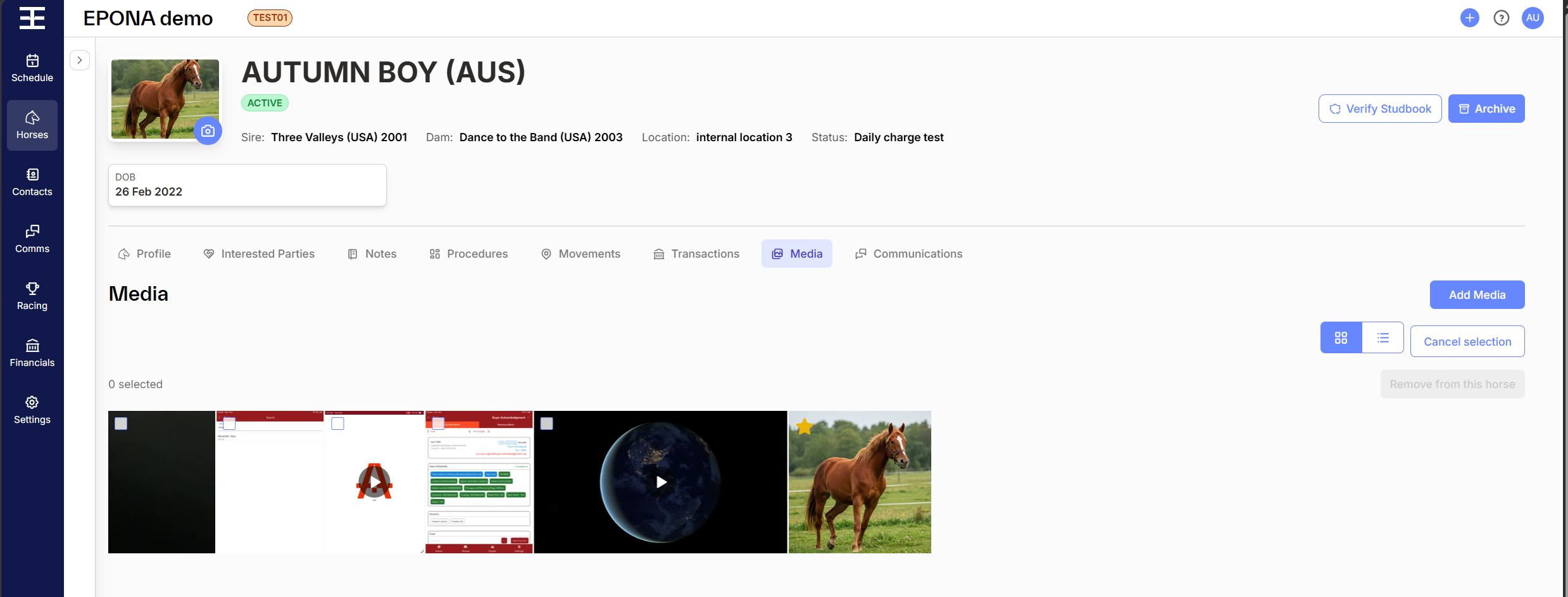
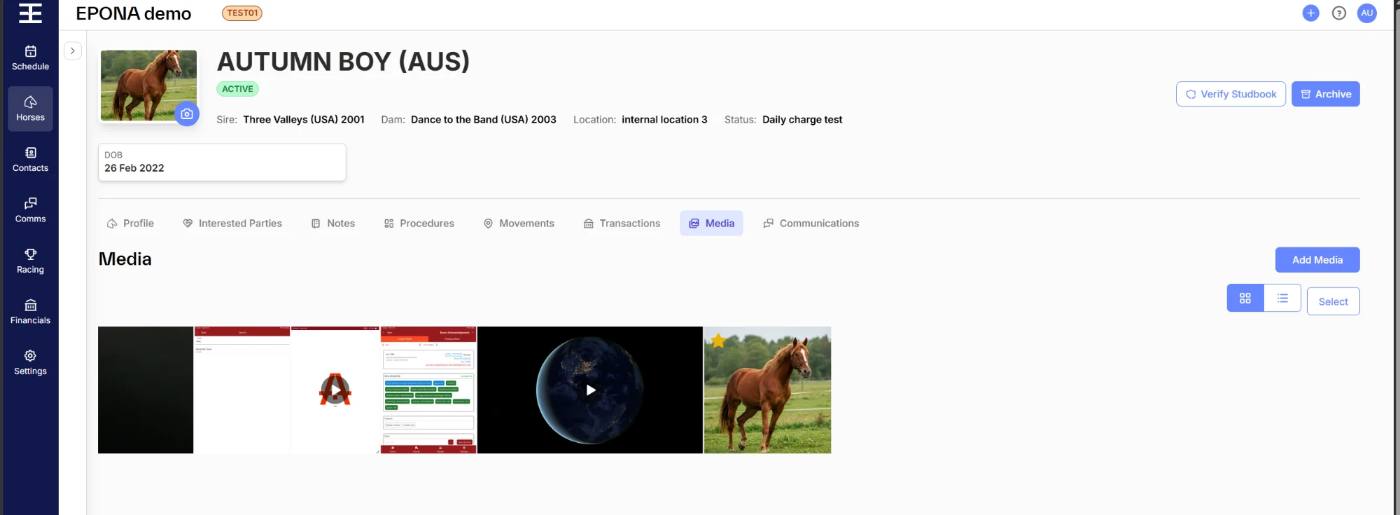
The Media tab shows a horse's photos and videos, including those added from procedures, communications, notes and movements. Click a photo or video to open it full screen. Switch between grid and list view with the grid and list icons above the gallery.
Add photos and videos
Click Add Media at top right (see Upload image).
Grid view
Each tile shows the date it was uploaded. Hover over a tile for:
- Pencil – edit the file name
- Star – make it the horse's default profile image
- Bin – remove it from this horse
The default profile image has a yellow star at top left and can't be removed.
List view
The columns are Date, File Name, Description, Type (Image or Video), Size, Duration (videos only) and Video Status. Edit File Name and Description directly in the row. The icons at the right of each row are Default Image (star) and Delete (bin).

Videos
A new video shows Preparing video while it is processed. It can't be opened or removed until it's ready, and the gallery updates on its own when it is. If processing fails, the tile shows Video preparation failed.
Remove media
- One item: click the bin icon.
- Several items, grid view: click Select, tick the tiles, then click Remove from this horse.
- Several items, list view: tick the rows, then click Remove from this horse.
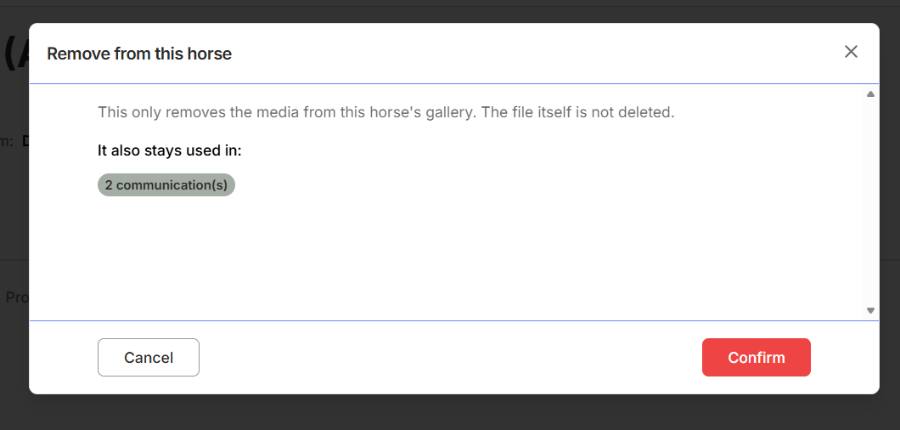
The confirmation window explains that the media is removed from this horse's gallery only, and the file itself is not deleted. It also lists where else the media is used: other horses (each a link to that horse), and the number of procedures, communications, notes and movements. If it isn't used anywhere else, it says so. Click Confirm to remove it.
Note - removing media from a horse doesn't remove it from the procedures, communications, notes or movements it was added to.