
Procedures Report
The Procedures Report summarises what you have spent on procedures, grouped by category, so you can check procedure costs without adding up the list by hand.
Note - available to Admins and Managers only.
Where to find it
Click Schedule at left of screen, then Procedures. Click View Report at top right of the list to open the report in a panel on the right of the screen, or Export beside it to download it.
The report uses the procedures list exactly as you have it: the status tab you are on (Pending, Completed, Draft or All) and any filters applied, such as Horse, Date, Category, Service or Practitioner. Filter the list first to report on part of your procedures, e.g. all Completed procedures for one practitioner last month. The report covers every matching procedure, not only the rows showing on screen.
What's in the report
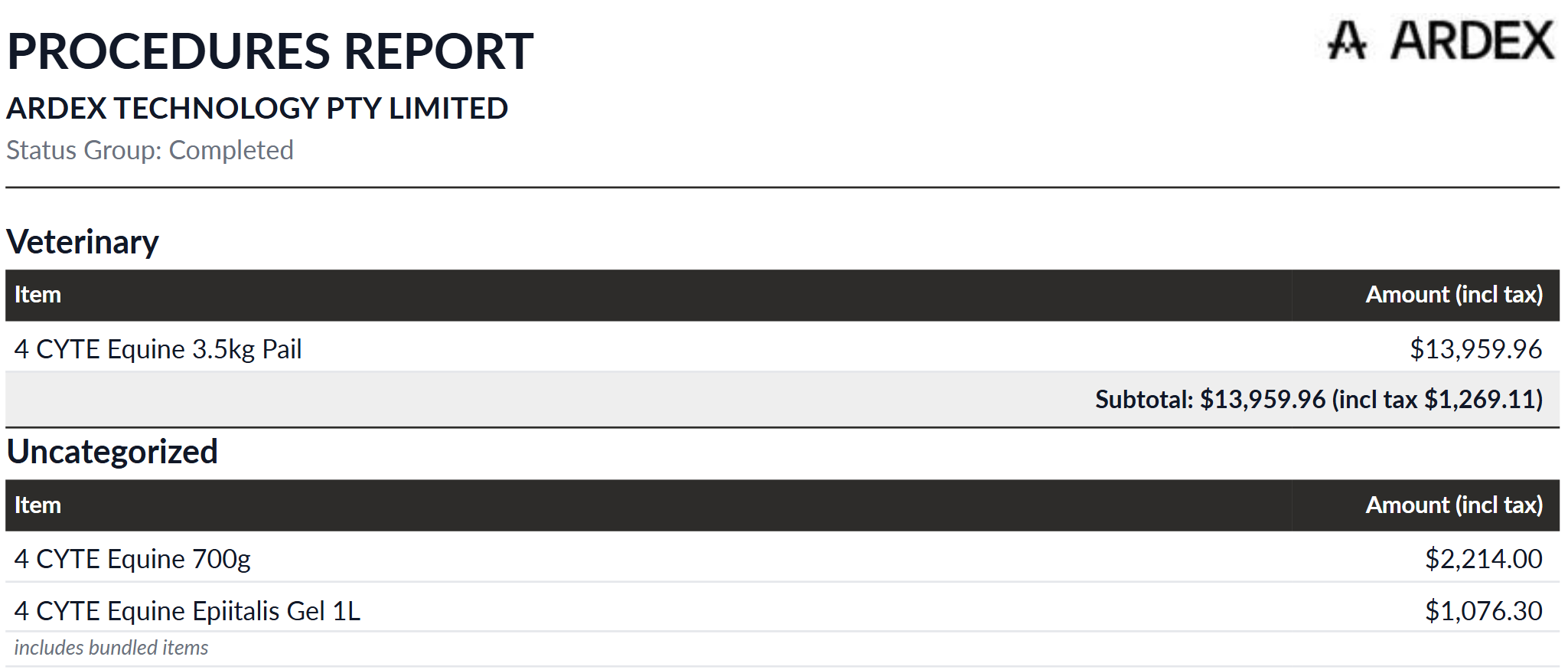
Procedures are grouped by category, alphabetically, with Uncategorized last. Within each category there is one line per item, showing:
- Item
- Amount (incl tax) - the total for that item across all matching procedures
Each category has a subtotal, inclusive of tax, with the tax it contains shown in brackets. A total in your workspace's currency (e.g. TOTAL AUD) appears at the end.
A bundled procedure is counted under its main item's category, with the bundled items' amounts included in that line. Those lines are marked "includes bundled items".
The report does not show horse, date, quantity, practitioner, notes or status. For that detail, use Export.
Saving and exporting
- View Report - click the printer icon in the report's toolbar to download it as a PDF. Every page shows the date and time it was generated.
- Export - download as CSV, Excel or PDF. CSV and Excel give one row per procedure, with category, date, horse, item, bundled items, quantity, amount ex tax, tax, practitioner, invoice description and comments. PDF is the same summary as View Report. Export is available on desktop screens.
Related: Procedures, Add Procedure, Transactions Report, Using Filtering