
Xero 3: Import Products and Services
Every product and service in EPONA carries the Xero account it posts to and the tax rate it attracts. Both are copied onto each charge and travel with the invoice line to Xero. Getting them right here is what makes invoices land in the right place in the ledger.
Available to admins only.
Items can be brought across from Xero, added directly in EPONA, or both.
Import from Xero
Click Settings in the left-hand navigation, then Accounting Settings, then the Products and Services tab to the right of the page title. Click Import on the right of the XERO card. EPONA reads your items from Xero and lists them for review.
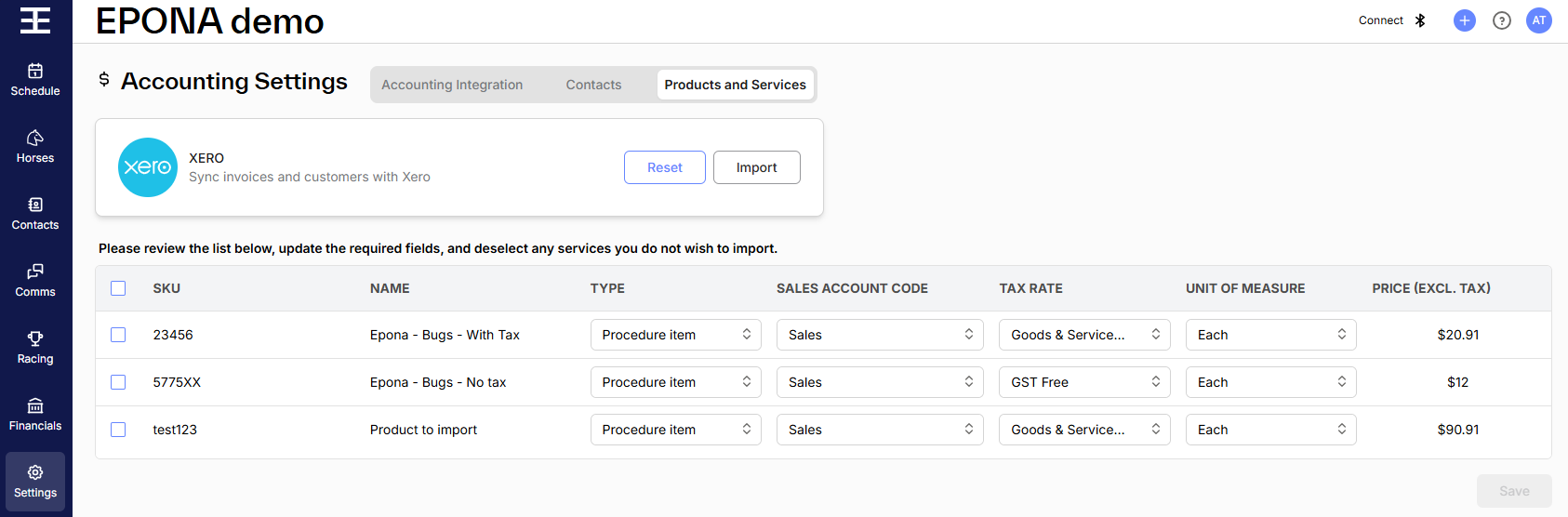
If the list shows No results, there are no items in your Xero organisation to bring across — add products and services directly in EPONA instead (see below).
Each row shows:
- SKU (the Xero item code)
- Name
- Type - required
- Sales Account Code - required (your Xero income accounts; pre-filled where the item's account exists in EPONA)
- Tax Rate - required (your Xero income tax rates; pre-filled where the item's tax rate exists in EPONA)
- Unit of Measure - required
- Price (Excl. Tax) (a tax-inclusive price in Xero is converted to exclusive of tax — check the price on any row where Tax Rate was blank)
Untick any item you do not want, complete any field marked Required, then click Save at bottom right. EPONA shows Import complete with the number imported. Where rows couldn't be imported — for example a name or SKU already in EPONA — a Skipped rows dialog lists each one with the reason.
Click Reset on the right of the XERO card to clear the list and start again.
Note - ticked rows still missing Name, Type, Tax Rate, Sales Account Code or Unit of Measure, and items imported before, are left out when you save, without a message. Check the number in Import complete against the number you ticked.
Note - the import is a one-off. Items are not kept in step with Xero afterwards, and products created in EPONA are never sent to Xero as items.
Check the account and tax rate on each product
Products and services added directly in EPONA use the same Xero accounts and tax rates. Click Settings, then Products and Services, and open a product to check its Sales Account Code and Tax Rate. Choosing an account fills in that account's default tax rate from Xero, where it has one, which can be changed.
A charge added without a product (an ad hoc charge) uses the account and tax rate chosen when the charge is added.
Note - if the account or tax rate you need is not in the list, it has not come across from Xero. Check it exists and is active in Xero, then disconnect and reconnect (see Xero 2).