Verify Horse Against Studbook
Overview
Horses are often added to EPONA before the stud book has their final details. A foal is added as unnamed, a microchip is recorded later, or the stud book corrects a colour. Verify Studbook compares a horse you already hold with its stud book record and lets you choose which details to update. No second horse record is created.
The details compared are:
- Horse Name
- Sire
- Dam
- Microchip
- DOB
- Gender
- Colour
- Brand (NS) and Brand (OS)
ℹ️ Note: Verify Studbook is available to all roles (Admin, Manager and User).
Start a verification
- Open the horse: click Horses at left of screen, then click the name of the horse.
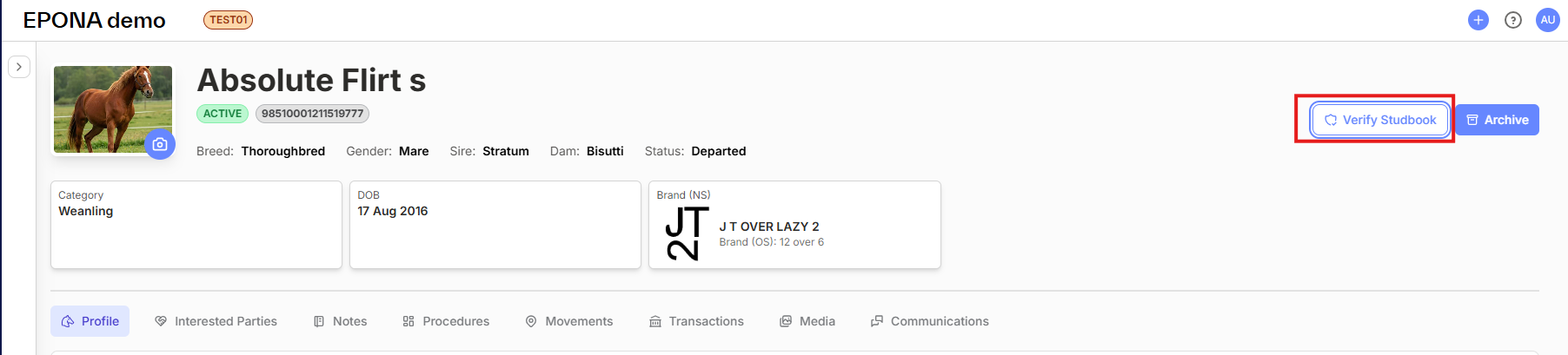
- Click Verify Studbook at top right of the horse profile, beside Archive. On a phone the button shows as a shield icon only.
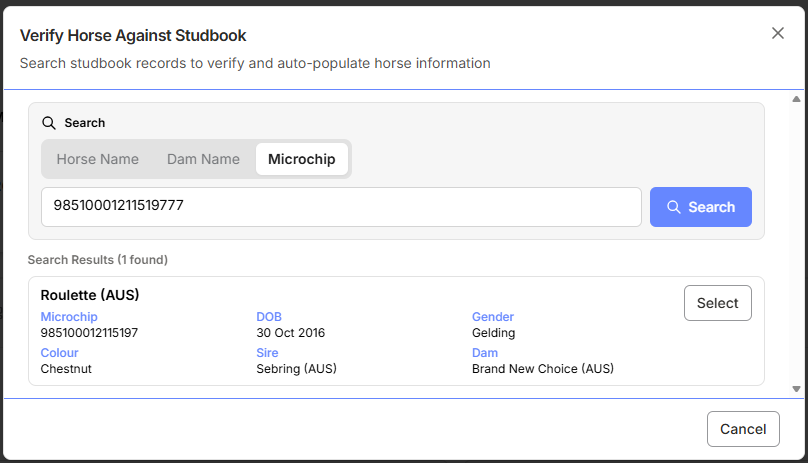
The Verify Horse Against Studbook window opens and searches straight away, using the horse's own details:
- Microchip, if the horse has a microchip recorded
- Dam Name, if the horse is unnamed (for example "Lady Jane / Snitzel 2024") and has no microchip
- Horse Name for every other horse
Find the right record
The matching records are listed under Search Results, each with its Microchip, DOB, Gender, Colour, Sire and Dam, so you can tell siblings apart. Click Select at right of the record that matches your horse.
To search a different way, click the Horse Name, Dam Name or Microchip tab. The search box fills with that detail from the horse and searches again. You can also type in the search box and click Search.
If nothing matches, the window shows "There were no horses found." and suggests the other two searches. Your search stays in place, so you can switch tabs without starting again.
ℹ️ Note: the same message shows if the stud book cannot be reached at that moment. If you expect the horse to be there, try again a little later.
Choose the details to update
Each detail is shown on its own row: the horse's current value on the left and the stud book value on the right.
- DIFFERS: the stud book holds a different value. The row is highlighted and ticked for update.
- MATCH: the values are the same, and there is nothing to update.
- A row the stud book holds no value for cannot be ticked. A verification never clears a detail you already have.
Untick any row you do not want to change. Above the rows, Select changed ticks every row that differs, and Clear unticks them all. The number of fields selected for update shows at bottom left.
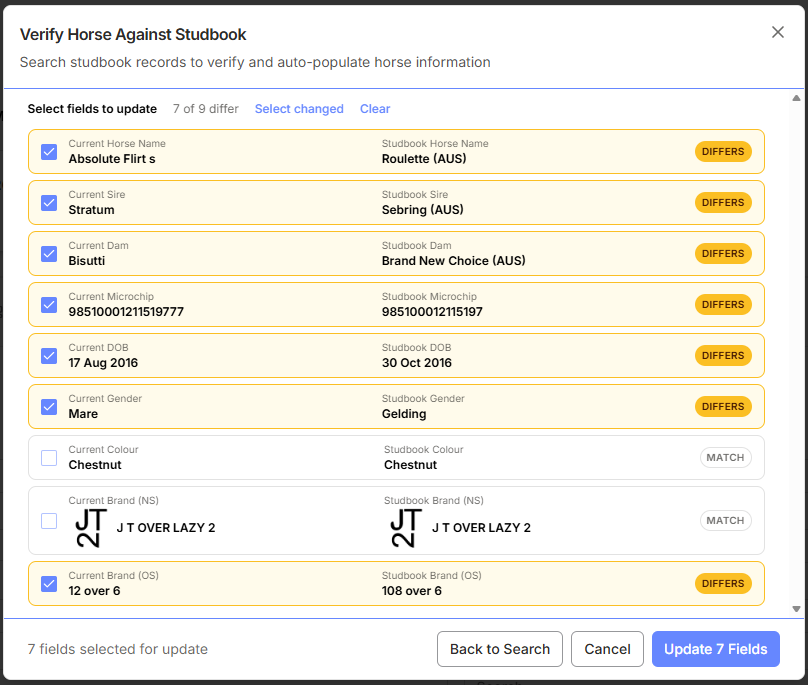
Brand (NS) shows the brand's picture on both sides. If the stud book's brand is not yet one of your workspace brands, it is added to your brands only when you tick the row and confirm. Cancelling, or leaving the row unticked, adds nothing. If the picture cannot be loaded, the row reads "Brand in stud book, preview unavailable" and is not ticked for you.
Confirm
Click the button at bottom right:
- Update 2 Fields (the number matches your ticks) updates the ticked details.
- Verify without changes shows when nothing is ticked. It records that the horse has been checked and changes no details.
A "Horse verified" message confirms the result, and the horse profile refreshes. Back to Search returns to the results if you selected the wrong record, and Cancel closes the window without changing anything.
ℹ️ Note: if the update would give the horse the same microchip as another horse in your workspace, or the same name and DOB, the verification is refused. A message in red names the other horse. The window stays open so you can untick the clashing detail and confirm again.
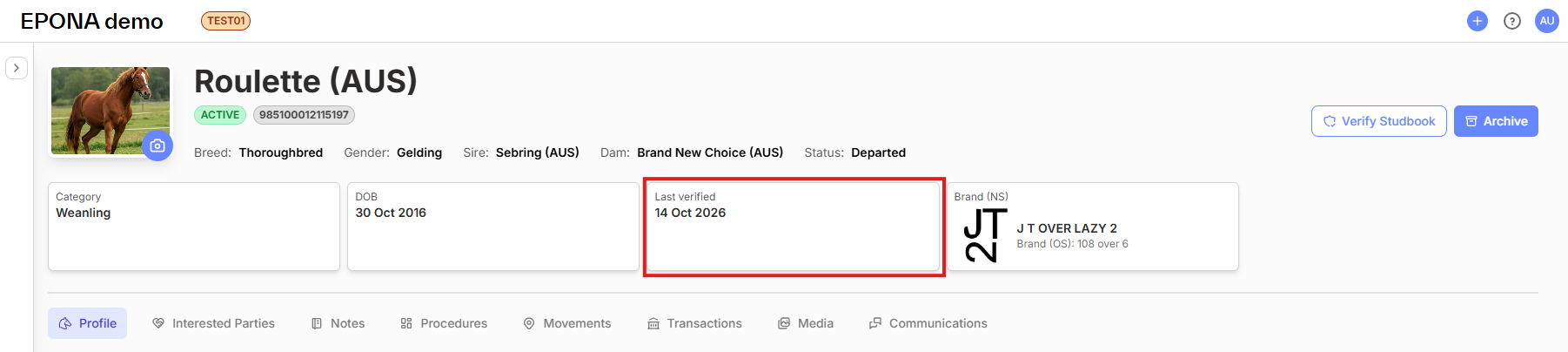
Last verified
Once a horse has been verified, its profile summary shows Last verified with the date, beside DOB. Horses that have never been verified show no Last verified line.